Cart
Cart drawer
What it is
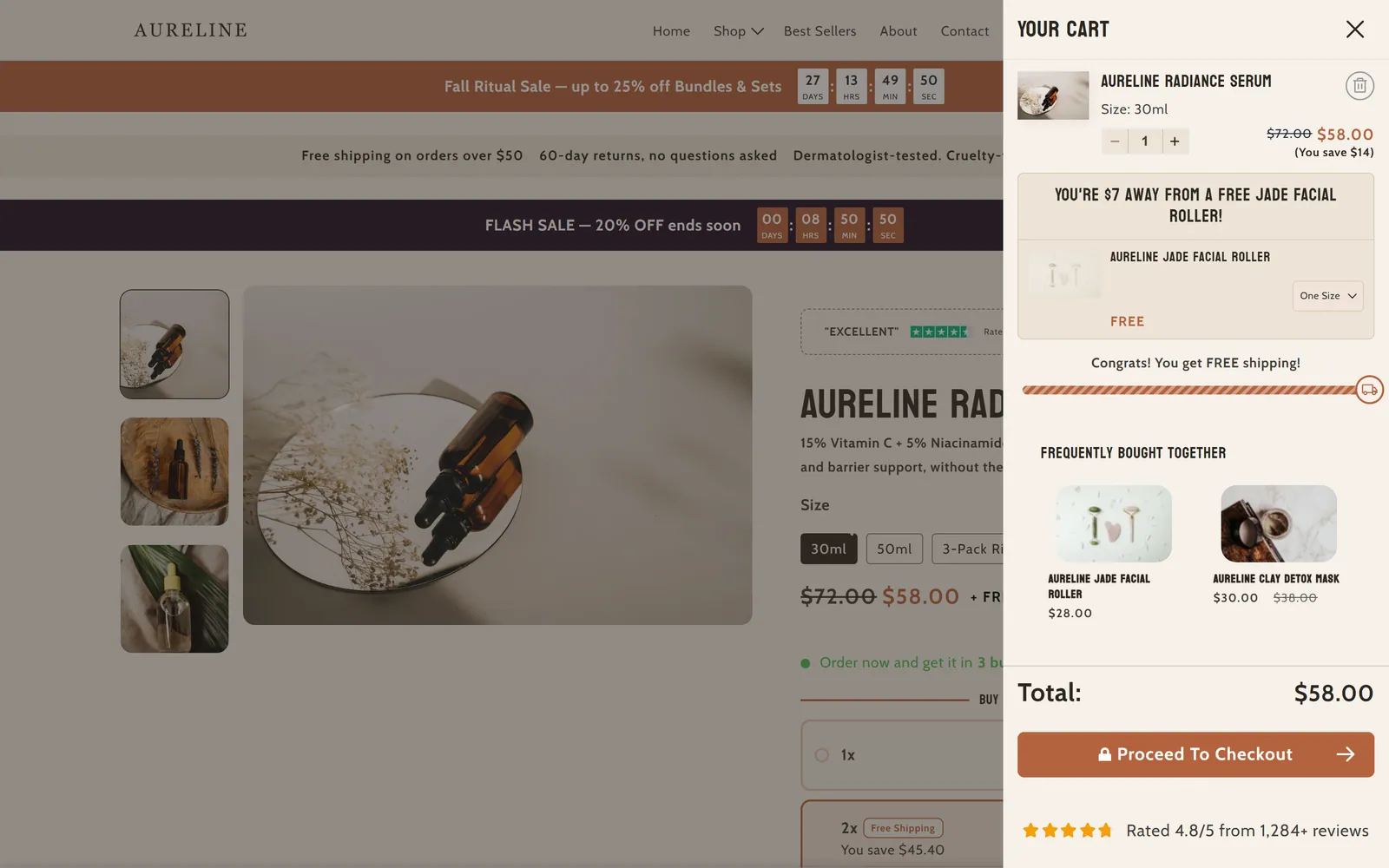
This is the slide-out cart that opens over the store when a customer adds a product or taps the cart icon. It is built from blocks: items, subtotals, checkout button, progress bars and more.
When to use it
- Encourage bigger orders with a progress bar or checkpoints bar toward free shipping or a gift.
- Show upsells, add-ons or a discount field without leaving the page.
- Match the cart to the rest of your store: colors, borders and width.
- Build trust with payment badges, reviews or an estimated shipping date.
- Used by default in
- Not placed by default: add it from the editor.
- Available in
- Everywhere except: Header (every page), Footer (every page)
- Limits
- Once per page
Main settings
How this section's settings are organised.
Test mode1 settings
Enable test mode
Heading2 settings
Text · Alignment
Width2 settings
Desktop width · Mobile width
Border7 settings
Border · Override border color · Border color · Border width · and 3 more
Cart header6 settings
Color scheme · Override background color · Background color · Override text color · and 2 more
Close icon12 settings
Close icon size · Color scheme · Override background color · Background color · and 8 more
Cart body5 settings
Color scheme · Override background color · Background color · Override text color · and 1 more
Empty cart link2 settings
Display the Continue shopping button link when the cart is empty · Continue shopping button custom link
Common settings
This section also has these shared settings, explained on their own page:
Blocks
Content you add inside the section with “Add block”. Their settings are in the full reference.
Cart items78 settings
What it is
Shows the list of products in the cart drawer with image, title, variants, price, quantity selector and remove button.
When to use it
- It is essential: without it shoppers can't see what's in their cart.
- Show savings or a low stock notice next to each item.
- Match each line (borders, padding, quantity buttons) to your brand.
The step-by-step guide and every setting of this block are in the reference for customers. I'm a customer: sign in
Subtotals41 settings
What it is
Shows the subtotal in the cart drawer footer and, optionally, a shipping line, total savings and applied discount badges.
When to use it
- Make the amount clear before checkout.
- Highlight how much the shopper saves with discounts.
- Announce free shipping right above the checkout button.
The step-by-step guide and every setting of this block are in the reference for customers. I'm a customer: sign in
Checkout button52 settings
What it is
The button that takes shoppers from the cart drawer to checkout. It can show the subtotal, a lock, an arrow and accelerated checkout buttons.
When to use it
- Whenever you use the cart drawer: it's the step to checkout.
- Build trust with the lock icon.
- Give the button its own style (gradient, shadow, size) so it stands out.
The step-by-step guide and every setting of this block are in the reference for customers. I'm a customer: sign in
Progress bar8 settings
What it is
Shows a bar that fills up as the cart subtotal grows, with a message telling shoppers how much more they need to unlock a promotion such as free shipping.
When to use it
- Encourage shoppers to spend a little more to reach free shipping.
- Communicate a simple, single-goal discount threshold.
The step-by-step guide and every setting of this block are in the reference for customers. I'm a customer: sign in
Checkpoints bar25 settings
What it is
A progress bar with up to three goals (for example free shipping, a discount and a gift), each with its own icon and label.
When to use it
- Offer several stepped rewards based on cart value.
- Combine free shipping, discounts and gifts in a single visual.
The step-by-step guide and every setting of this block are in the reference for customers. I'm a customer: sign in
Pixelion - Rating stars50 settings
What it is
Shows a star rating, a text such as «(xxxx Reviews)» and optional customer avatars inside the cart drawer.
When to use it
- Remind shoppers of your store's reputation right before checkout.
- Add social proof with real customer faces.
The step-by-step guide and every setting of this block are in the reference for customers. I'm a customer: sign in
Pixelion: Platform Review51 settings
What it is
Shows a rating badge from a review platform (Trustpilot, Google, Shopify or your own) with its logo, stars and text such as «Rated 4.5/5 on».
When to use it
- Add third-party trust inside the cart.
- Highlight your score on a well-known platform.
The step-by-step guide and every setting of this block are in the reference for customers. I'm a customer: sign in
Pixelion: Countdown timer6 settings
What it is
Shows a countdown in the cart drawer with a message like «Cart reserved for [timer] more minutes!».
When to use it
- Create urgency during campaigns or launches.
- Encourage shoppers to finish checkout without delay.
The step-by-step guide and every setting of this block are in the reference for customers. I'm a customer: sign in
Pixelion - Fresh Upsells122 settings
What it is
Shows recommended products inside the cart drawer, with image, price, variant picker and a button to add them without leaving the cart.
When to use it
- Raise average order value with complementary products.
- Recommend products based on what's in the cart using metafields.
- Promote a specific collection at the last step.
The step-by-step guide and every setting of this block are in the reference for customers. I'm a customer: sign in
Pixelion - Reviews15 settings
What it is
Shows up to three customer reviews inside the cart drawer, with name, text, author photo and stars.
When to use it
- Answer last-minute doubts with real opinions.
- Build trust right before checkout.
The step-by-step guide and every setting of this block are in the reference for customers. I'm a customer: sign in
Free/Conditional gift36 settings
What it is
Shows a gift product in the cart drawer that unlocks when the cart reaches a subtotal, with a progress message and a locked image until then.
When to use it
- Reward orders above a certain amount with a gift.
- Give every order a gift (requirement 0).
- Pair it with the «Checkpoints bar» to show the goal.
The step-by-step guide and every setting of this block are in the reference for customers. I'm a customer: sign in
Pixelion - Note box41 settings
What it is
A box with a heading and subheading inside the cart drawer for notices, conditions or store messages.
When to use it
- Warn about shipping times, holidays or order changes.
- Highlight a guarantee or return policy.
The step-by-step guide and every setting of this block are in the reference for customers. I'm a customer: sign in
Pixelion - Blinking Dot17 settings
What it is
Shows a blinking colored dot next to a short text, for example «Order now and get it in 3 business days».
When to use it
- Draw attention to a delivery time.
- Highlight a short availability or urgency message.
The step-by-step guide and every setting of this block are in the reference for customers. I'm a customer: sign in
Image7 settings
What it is
Shows an image inside the cart drawer, such as a promotional banner or a guarantee seal.
When to use it
- Announce a promotion or discount code.
- Show a trust or guarantee seal.
The step-by-step guide and every setting of this block are in the reference for customers. I'm a customer: sign in
Pixelion - Icons Plus92 settings
What it is
Shows up to four items with icon, heading and text (for example fast shipping, returns or secure payment) in a row, column or slider.
When to use it
- Summarize the benefits of buying from your store.
- Build trust with guarantees and policies.
The step-by-step guide and every setting of this block are in the reference for customers. I'm a customer: sign in
Pixelion Description V199 settings
What it is
Shows a heading, a text and a list of up to eight benefits with icons inside the cart drawer.
When to use it
- Remind shoppers of key product or store benefits.
- List what an order or subscription includes.
The step-by-step guide and every setting of this block are in the reference for customers. I'm a customer: sign in
Pixelion - Badges129 settings
What it is
Shows up to five badges with icon, text, sub text and a tooltip that opens on hover or tap.
When to use it
- Highlight guarantees, shipping or returns compactly.
- Give extra detail without taking space, thanks to the tooltip.
The step-by-step guide and every setting of this block are in the reference for customers. I'm a customer: sign in
Divider12 settings
What it is
A separator line to split areas of the cart drawer.
When to use it
- Visually separate blocks in the cart body or footer.
The step-by-step guide and every setting of this block are in the reference for customers. I'm a customer: sign in
Payment badges5 settings
What it is
Shows payment method logos in the cart drawer footer, with optional text below.
When to use it
- Reassure shoppers by showing how they can pay.
- Highlight specific methods such as PayPal or Klarna.
The step-by-step guide and every setting of this block are in the reference for customers. I'm a customer: sign in
Estimated shipping8 settings
What it is
Shows an estimated delivery window in the cart drawer footer, calculated from today's date, e.g. «Estimated Delivery: October 9th - October 17th».
When to use it
- Set clear expectations for when the order will arrive.
- Reduce shipping doubts before checkout.
The step-by-step guide and every setting of this block are in the reference for customers. I'm a customer: sign in
Discount field6 settings
What it is
Adds a field to the cart drawer footer where shoppers can type and apply a discount code before checkout.
When to use it
- Make campaign or influencer codes easy to use.
- Save shoppers from waiting until checkout to apply their code.
The step-by-step guide and every setting of this block are in the reference for customers. I'm a customer: sign in
Pixelion - Add-ons24 settings
What it is
Offers an add-on product in the cart drawer (for example shipping protection or gift wrap) that shoppers add or remove with a toggle or checkbox.
When to use it
- Sell shipping insurance, extended warranties or gift wrap.
- Add a low-cost extra in one click.
The step-by-step guide and every setting of this block are in the reference for customers. I'm a customer: sign in
Custom liquid2 settings
What it is
Inserts your own Liquid or HTML code inside the cart drawer, in the body or footer.
When to use it
- Add an app widget or script that has no block of its own.
- Show custom dynamic content, such as a message based on the cart.
The step-by-step guide and every setting of this block are in the reference for customers. I'm a customer: sign in
Full reference: 984 settings
Type, default value, ranges and units, every option and when each setting shows — plus every block setting, tips and the docs of older versions. Available to Pixelion customers.
File: sections/cart-drawer.liquid · v2.0.20