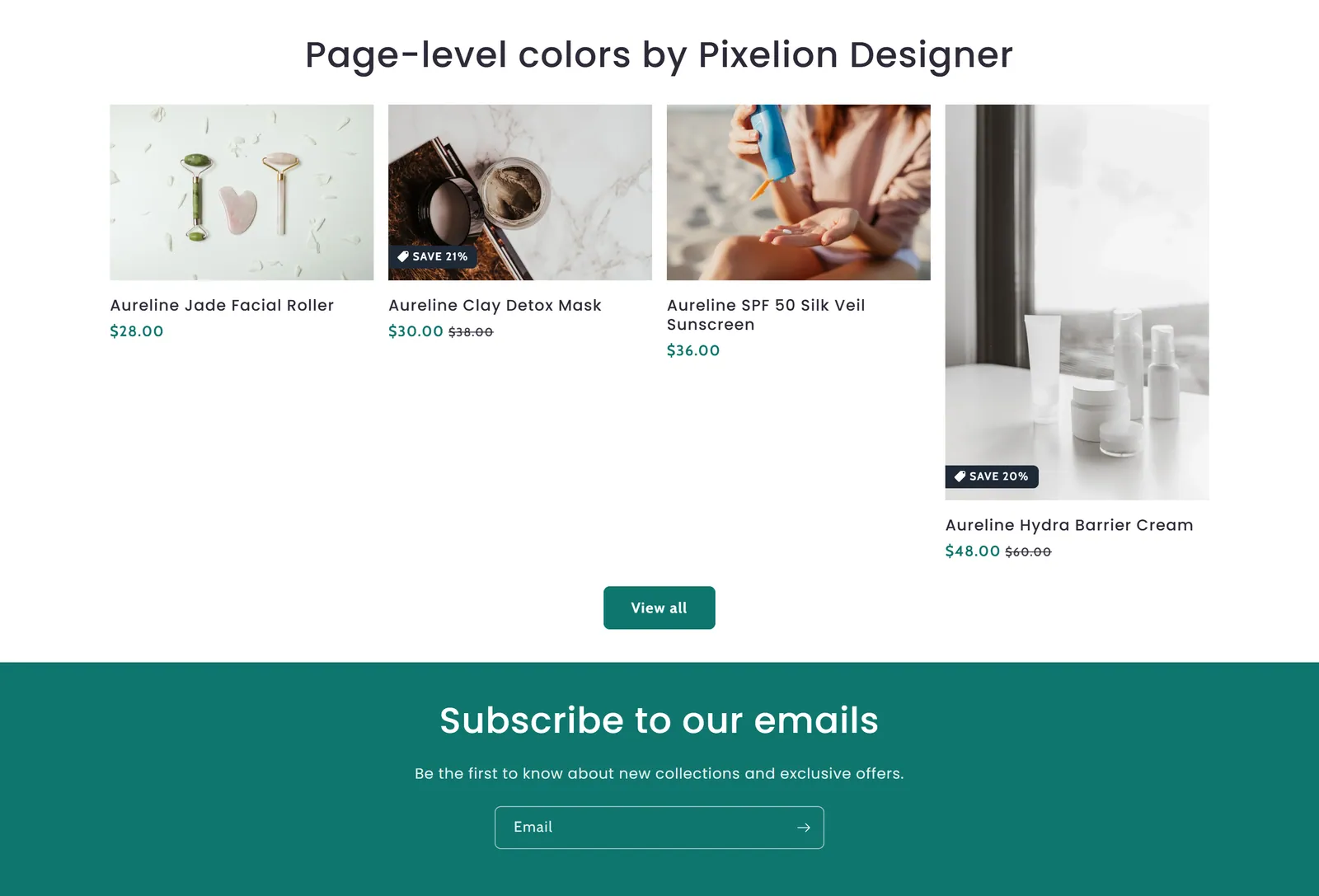
Help Center
How to set up Pixelion
Every section, block and setting of the theme, explained. Search for any option by the name you see in the Shopify editor.
- sections
- 73
- sections
- blocks
- 195
- blocks
- settings
- 8,152
- settings
- store languages
- 31
- store languages
Getting started
Four steps from download to a store that looks like yours.
Pixelion is set up on two levels. In «Customize» › «Theme settings» you choose what applies to the whole store: logo, colors, typography, buttons and cards. Then, on each template, you add sections with «Add section» and, inside them, blocks with «Add block». Every page of this Help Center explains what a section or settings group does and when it is worth using.
- 1
Download the theme
Download the .zip from your account and upload it in Shopify › Online Store › Themes › Add theme.
Go to my account - 2
Activate your license
In the theme editor open Theme settings › Pixelion license and paste the key from your account.
License settings - 3
Set your brand
Logo, colors and typography are global: set them once and every section uses them.
Colors - 4
Build your pages
Add sections and blocks to each template. Below you have every one, grouped by what they do.
See the sections
Global theme settings
Theme settings in the editor (the brush icon): they apply to the whole store.
- Pixelion license1 settings
- Security4 settings
- Custom Homepage Link2 settings
- Logo5 settings
- Colors11 settings
- Typography8 settings
- Animations9 settings
- Badges6 settings
- Icons1 settings
- Layout4 settings
- Buttons9 settings
- Variant pills13 settings
- Variant dropdowns14 settings
- Inputs7 settings
- Product cards17 settings
- Collection cards11 settings
- Blog cards11 settings
- Content containers7 settings
- Media7 settings
- Dropdowns and pop-ups7 settings
- Drawers6 settings
- Brand information4 settings
- Social media9 settings
- Search behavior3 settings
- Currency format1 settings
- Scrollbar & Cursor5 settings
- Cart5 settings
Common settings
Options repeated in many sections, explained once.
Sections by category
Each section with all its settings and blocks.
Header & navigation
2 sectionsThe header and the info bar sit at the top of every page. This is where you set up the logo, the menu and the messages you want shoppers to see as soon as they arrive.


Hero & banners
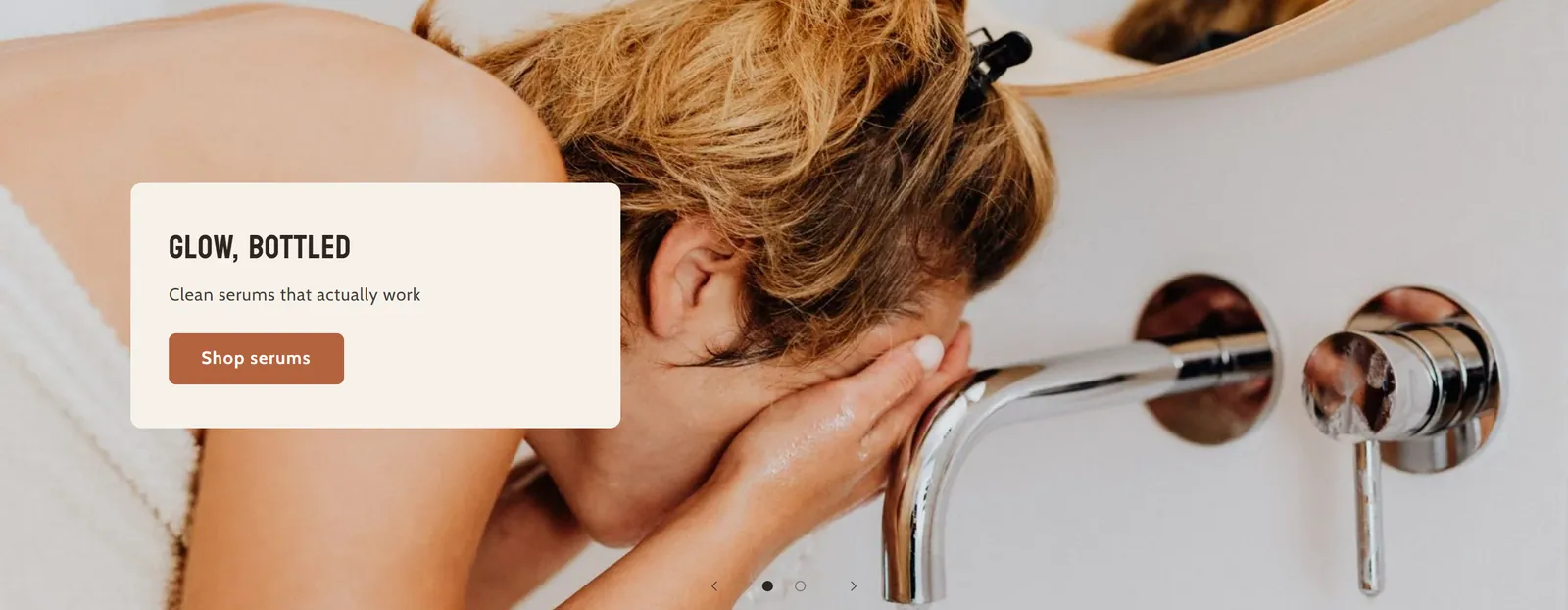
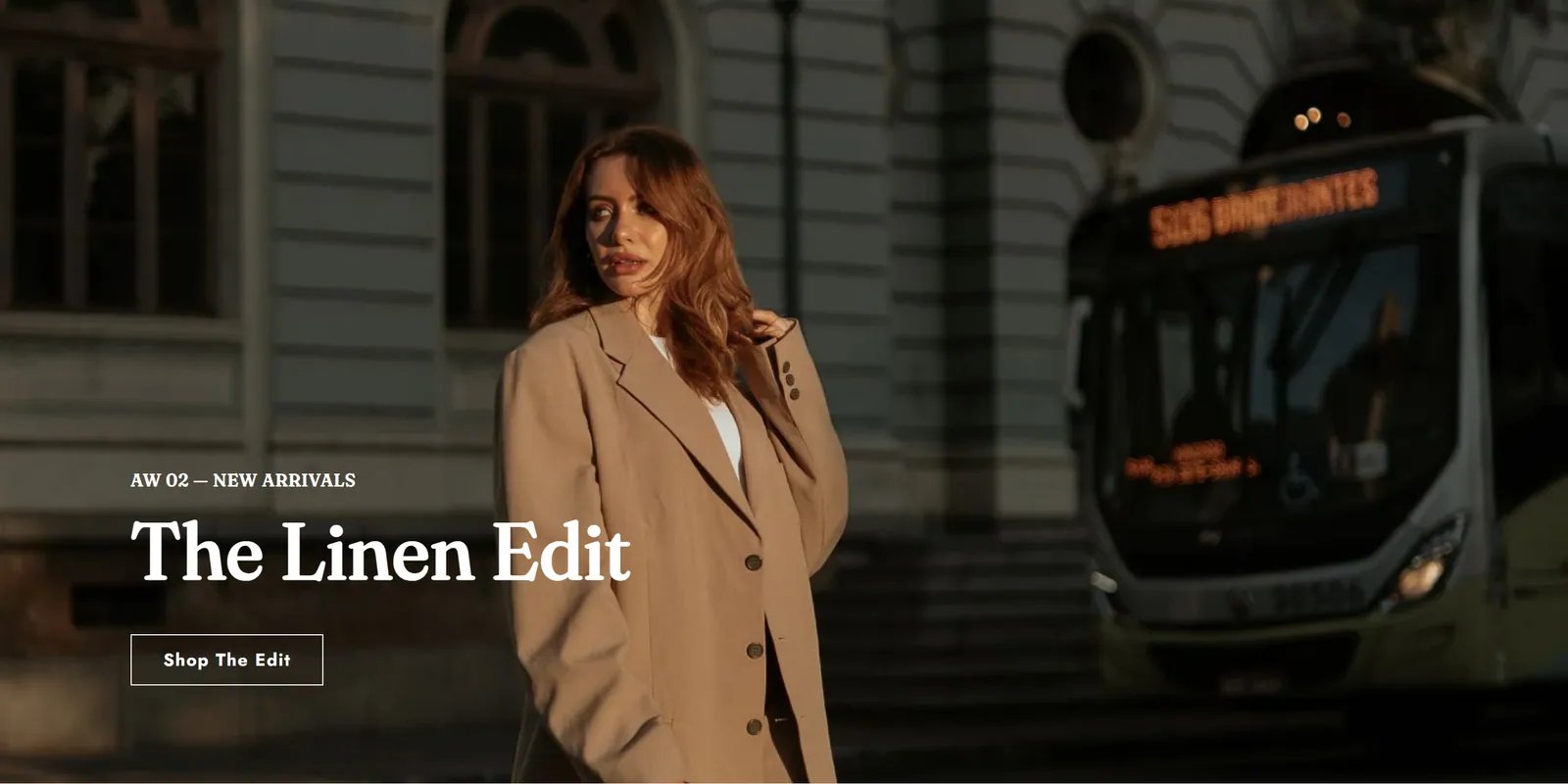
4 sectionsLarge, visual sections to open a page: slideshow, image banners, custom banner and 3D parallax. Use them to introduce your brand, a collection or a promotion.
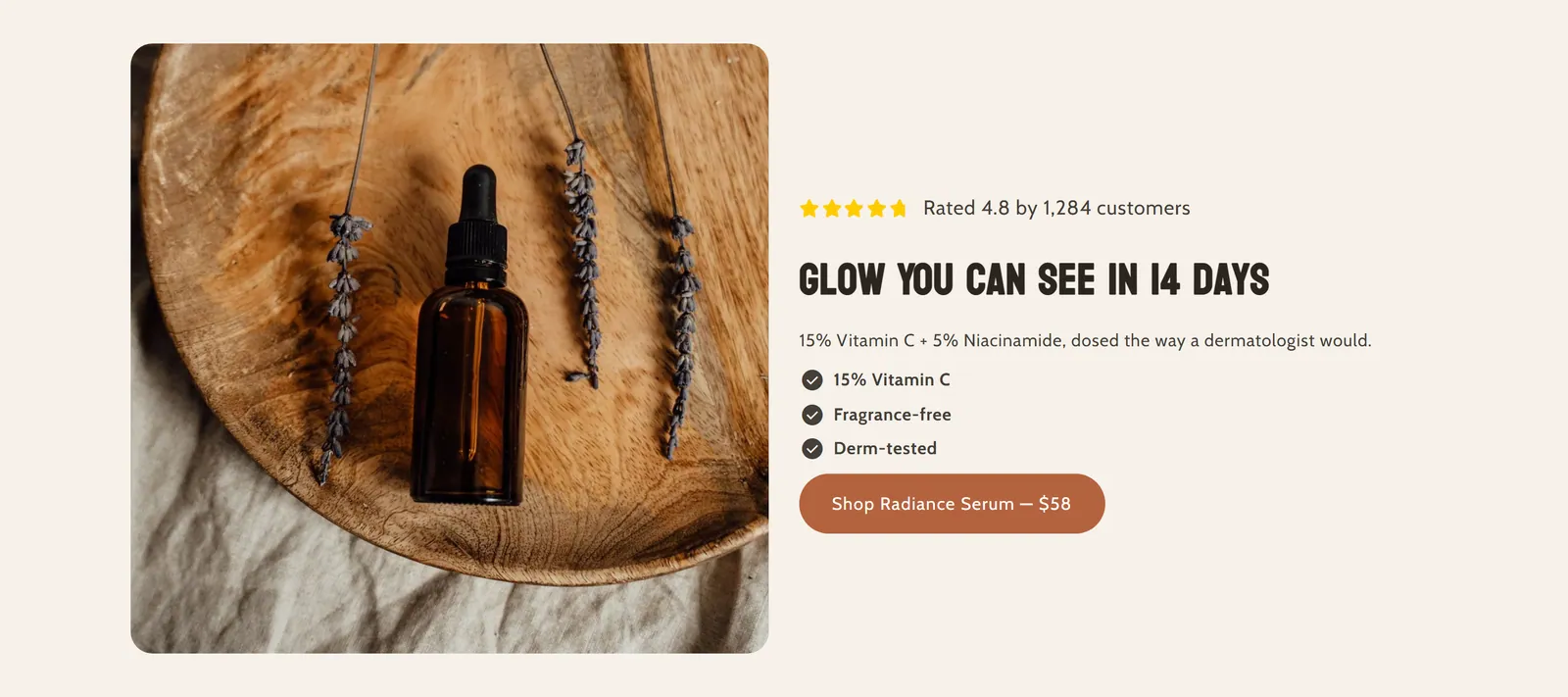
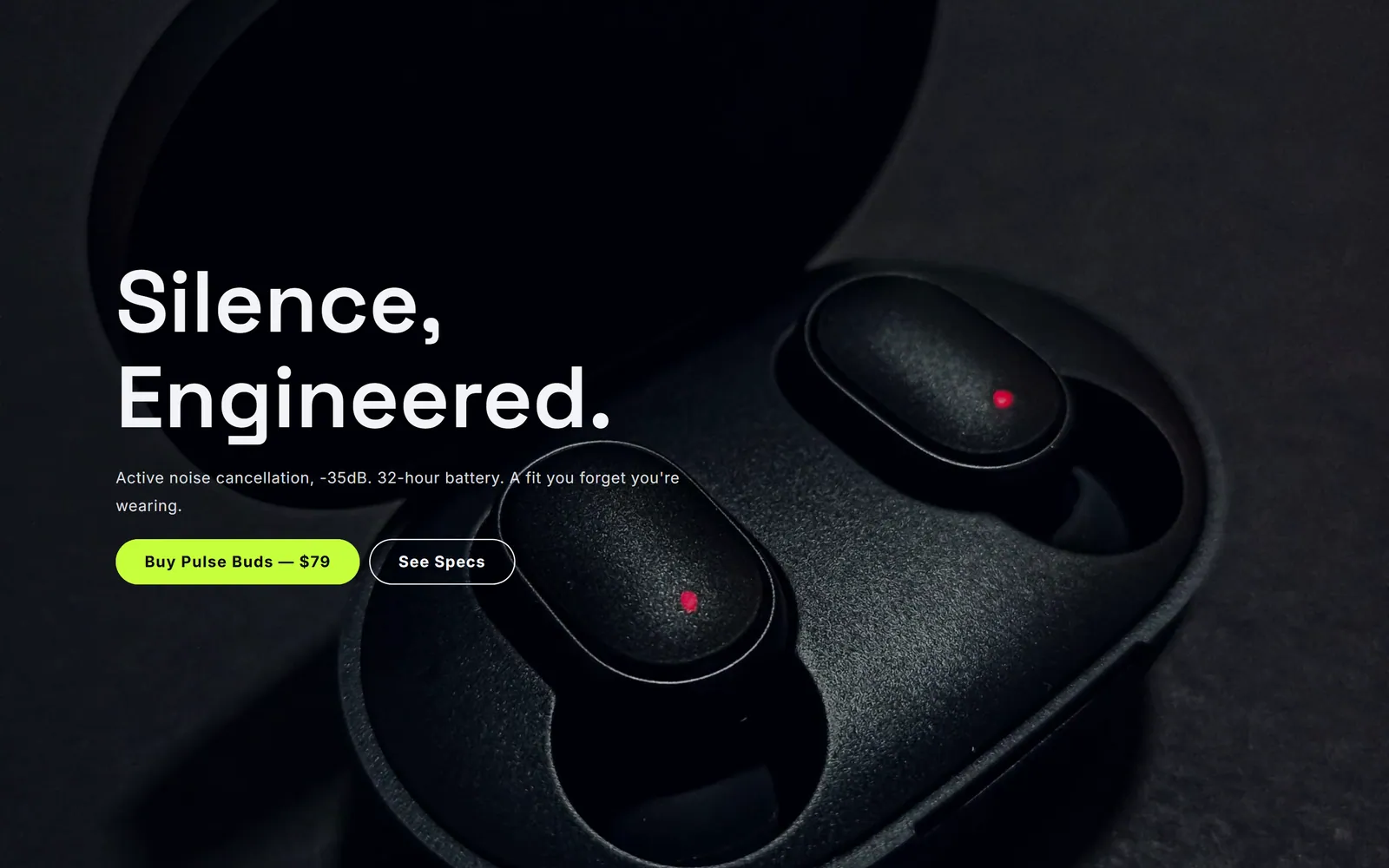
Product
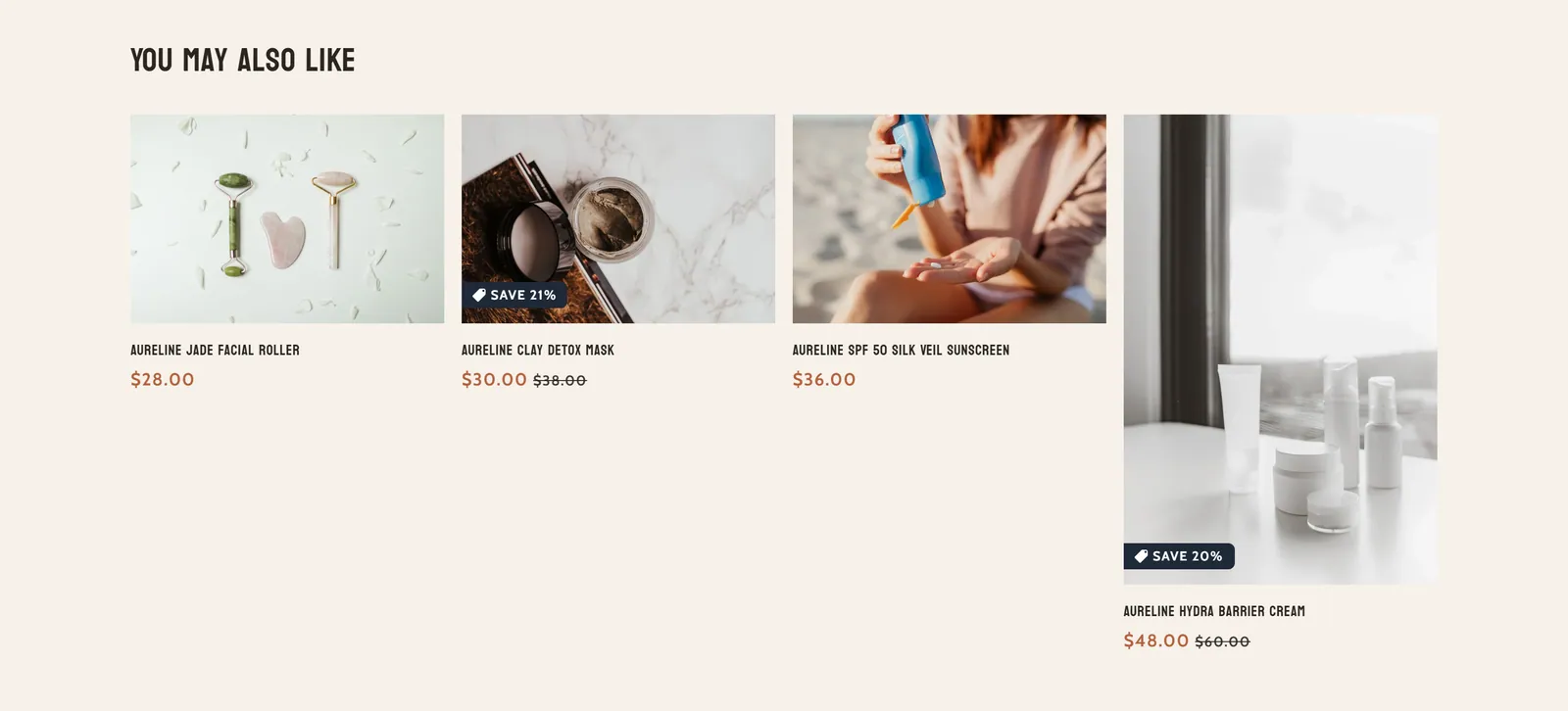
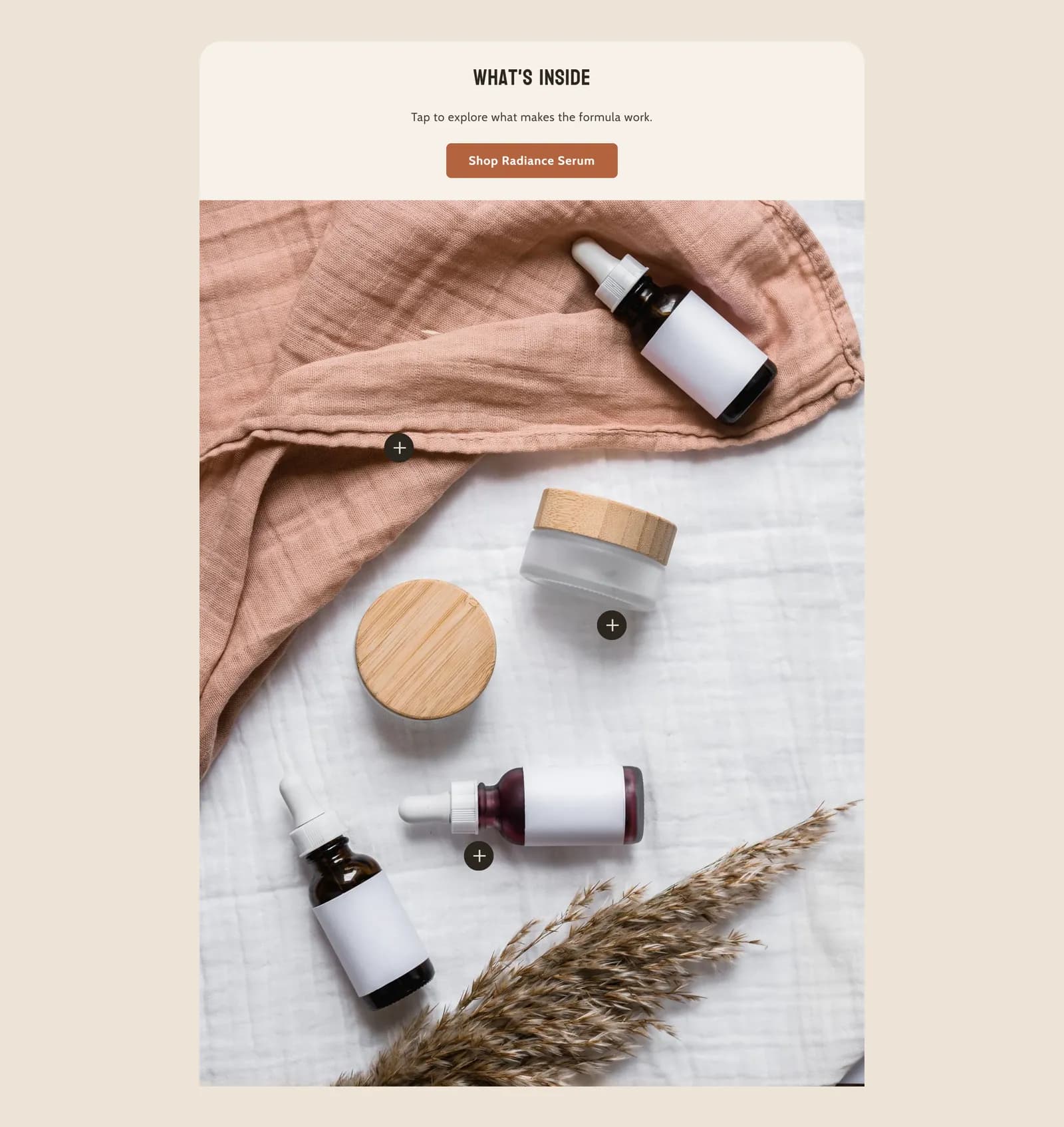
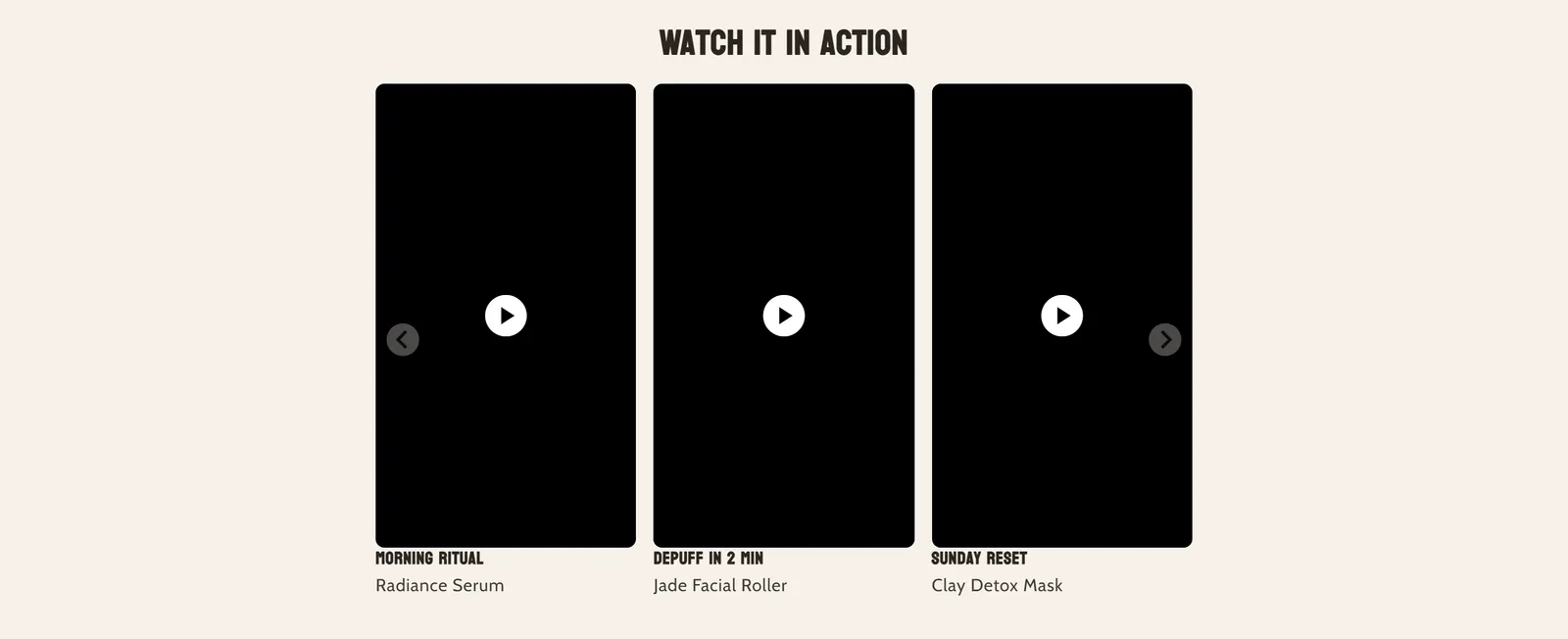
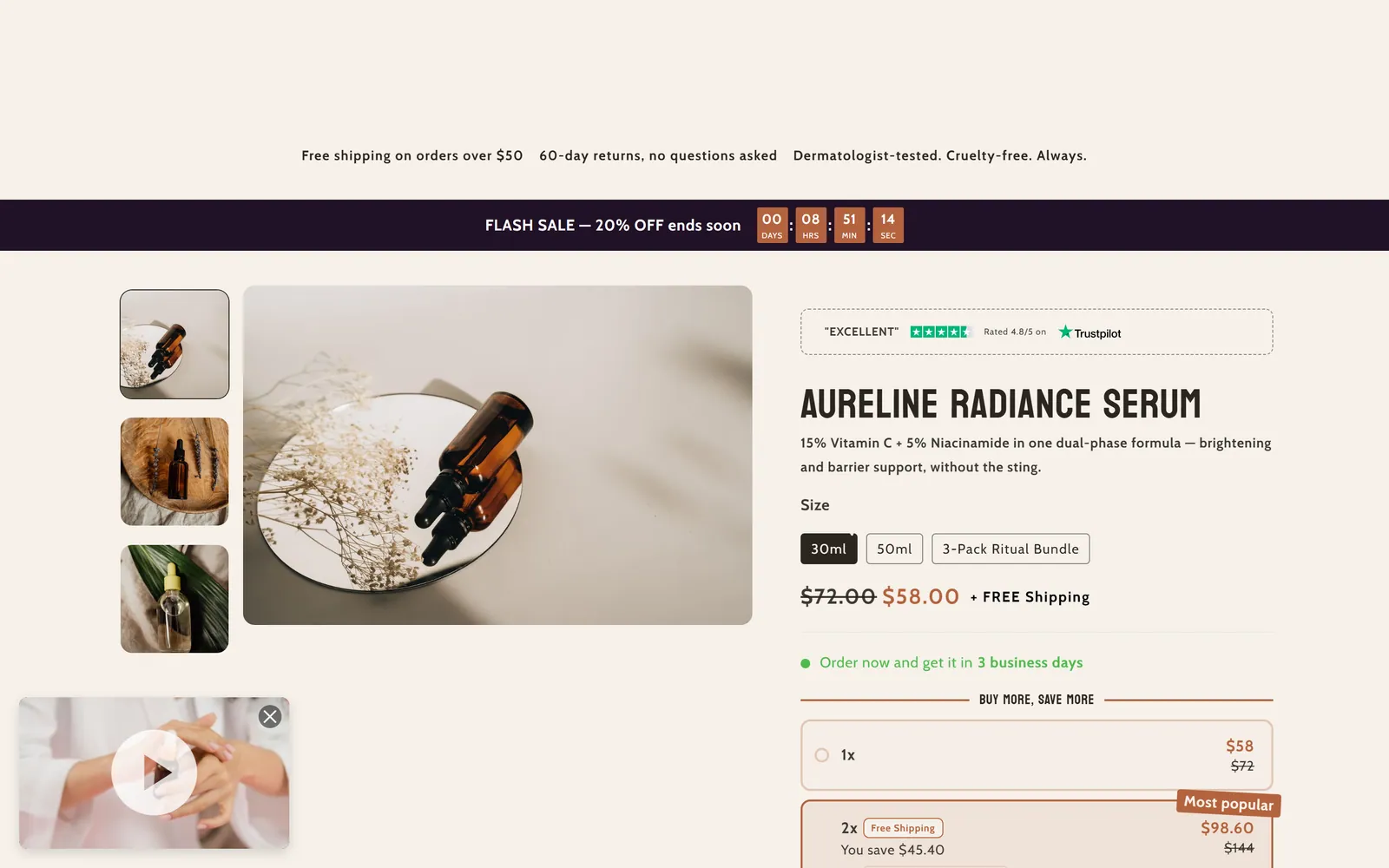
6 sectionsEverything around the product page: the main product information with its blocks, featured and related products, features and product videos.
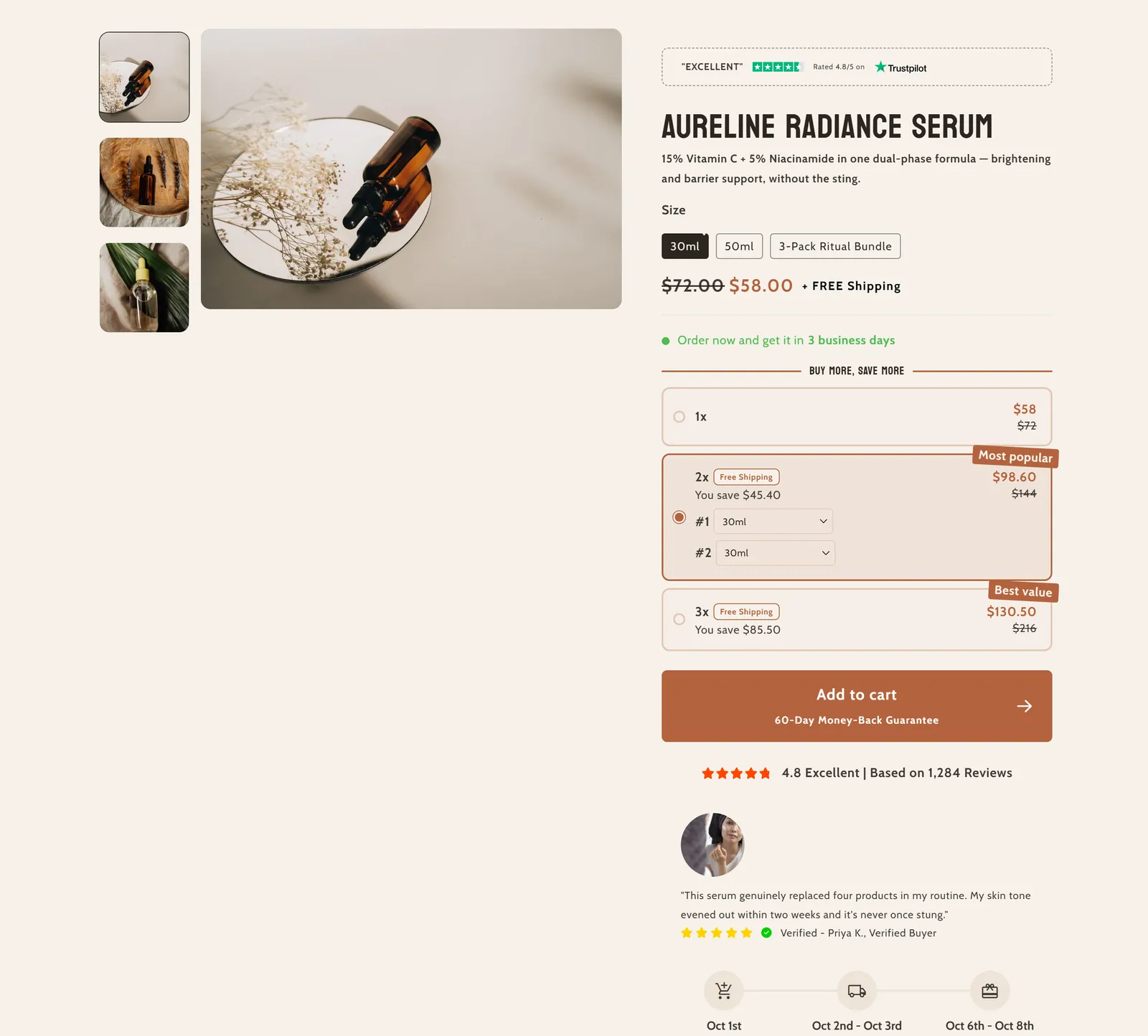
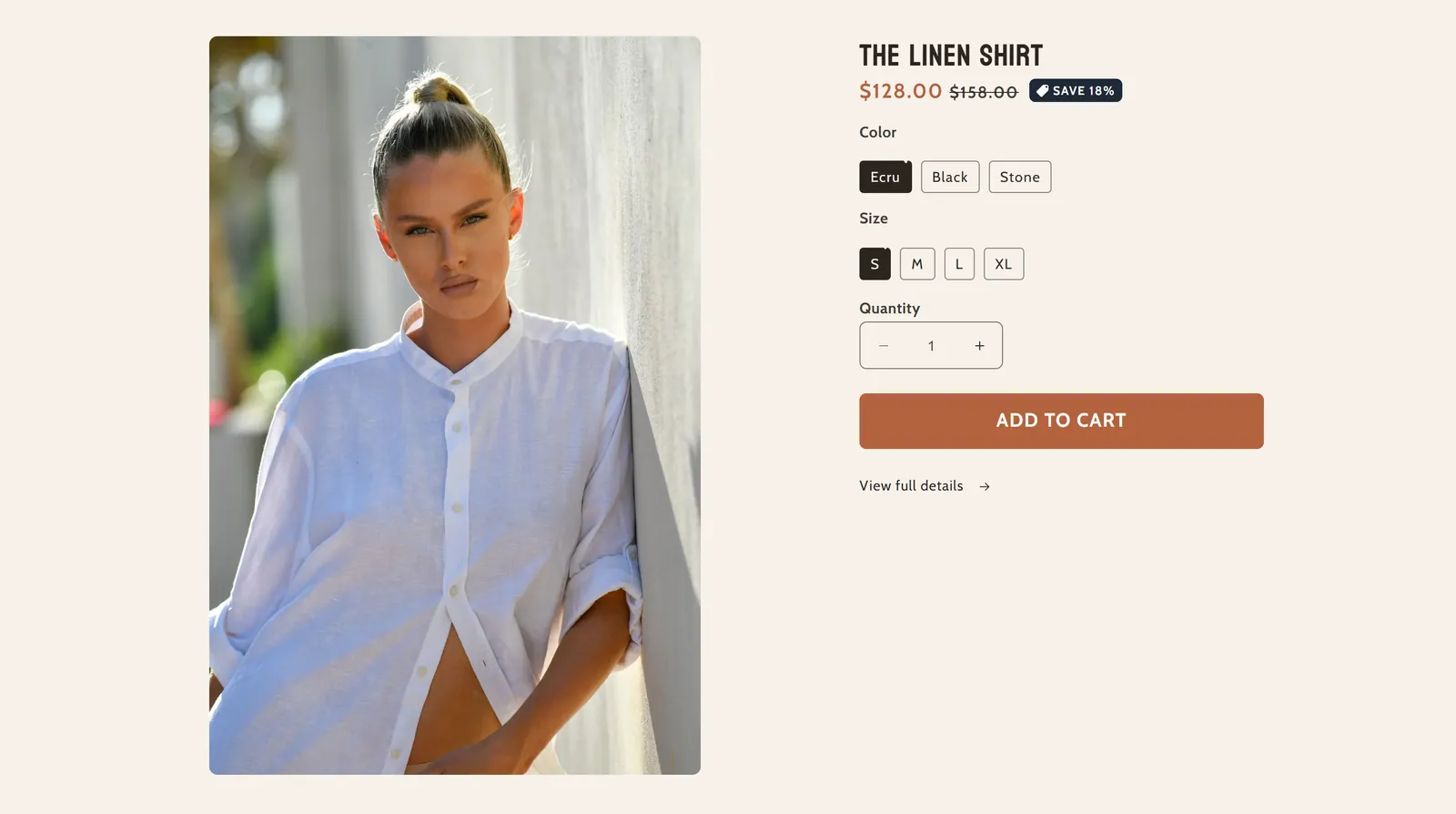
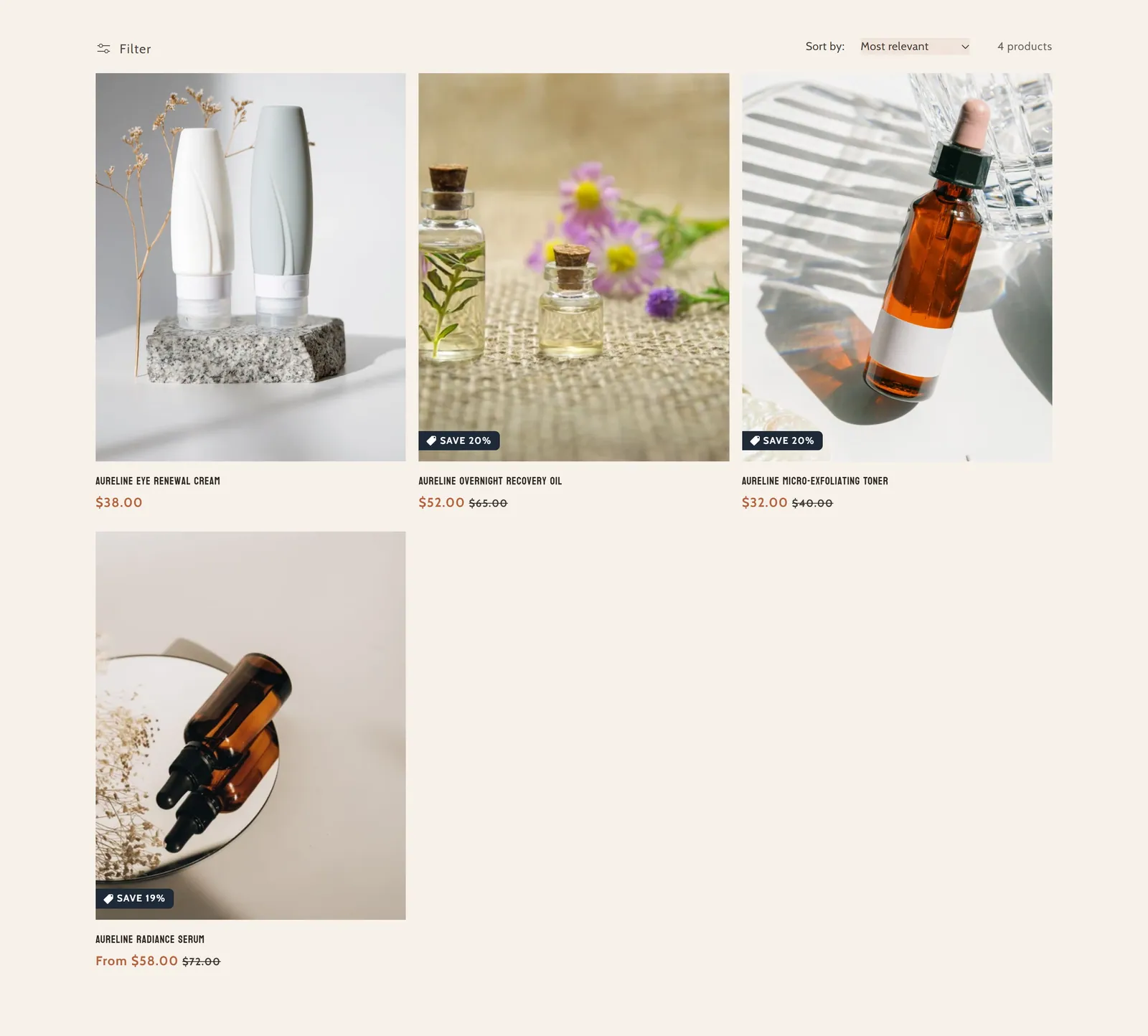
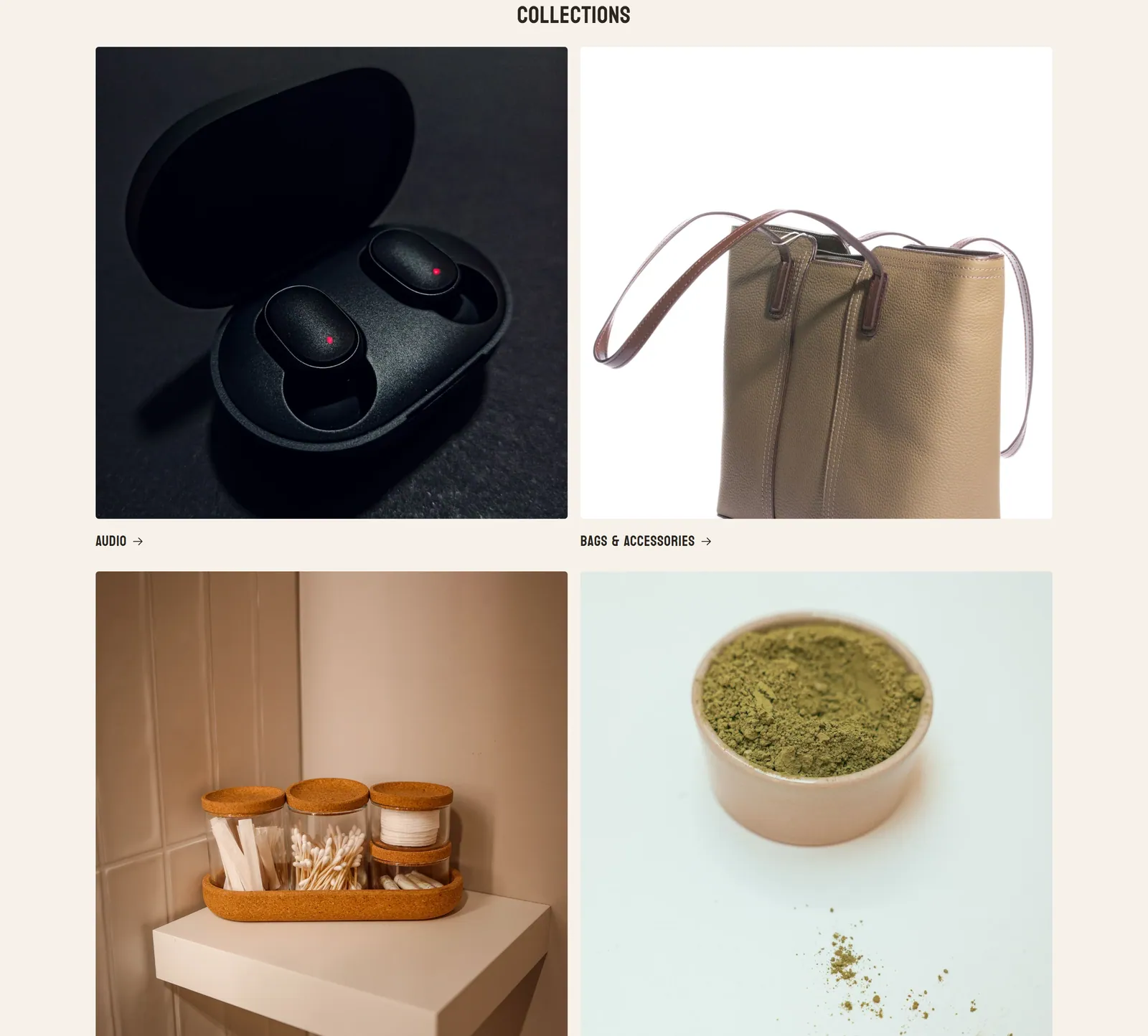
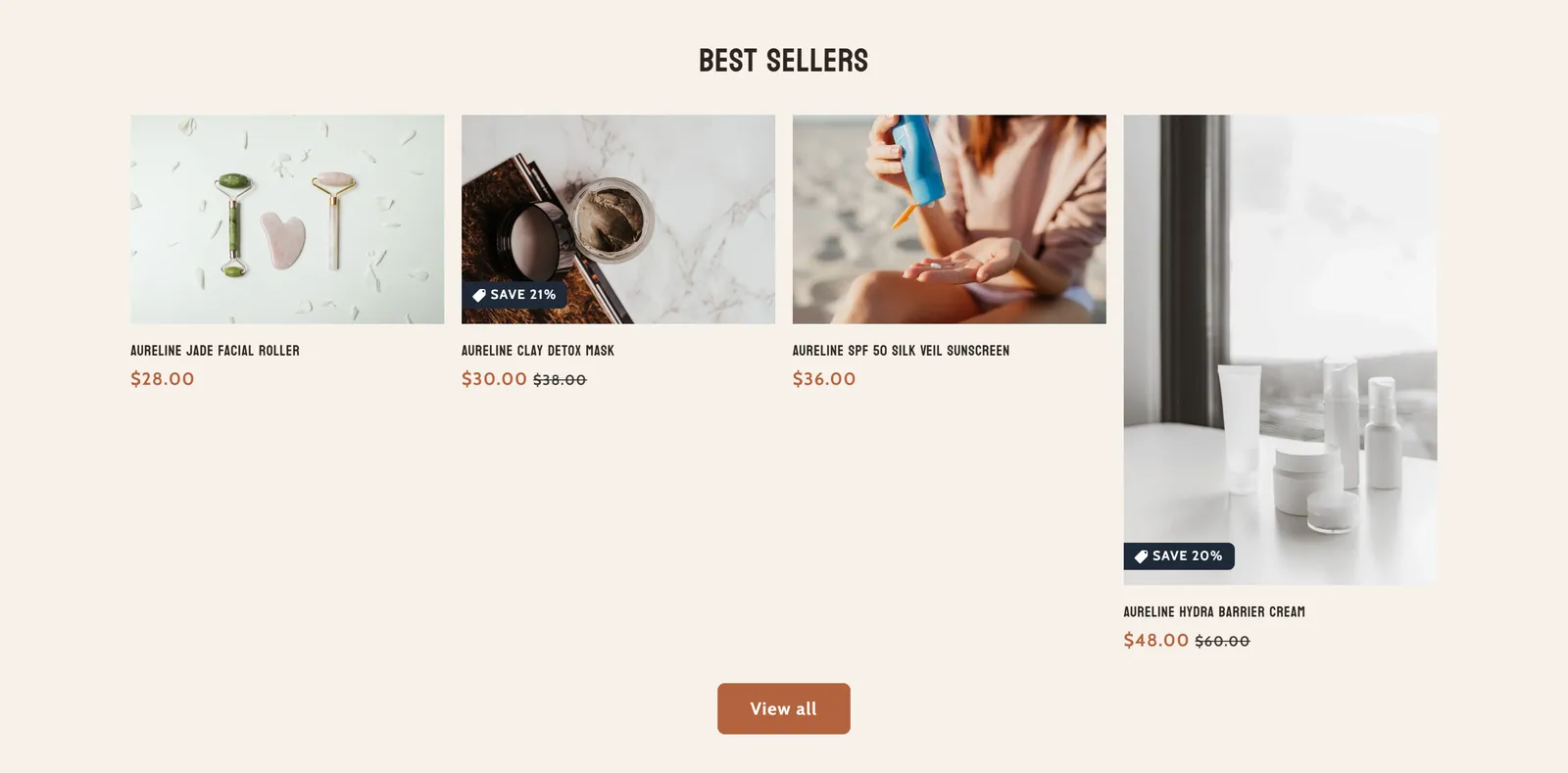
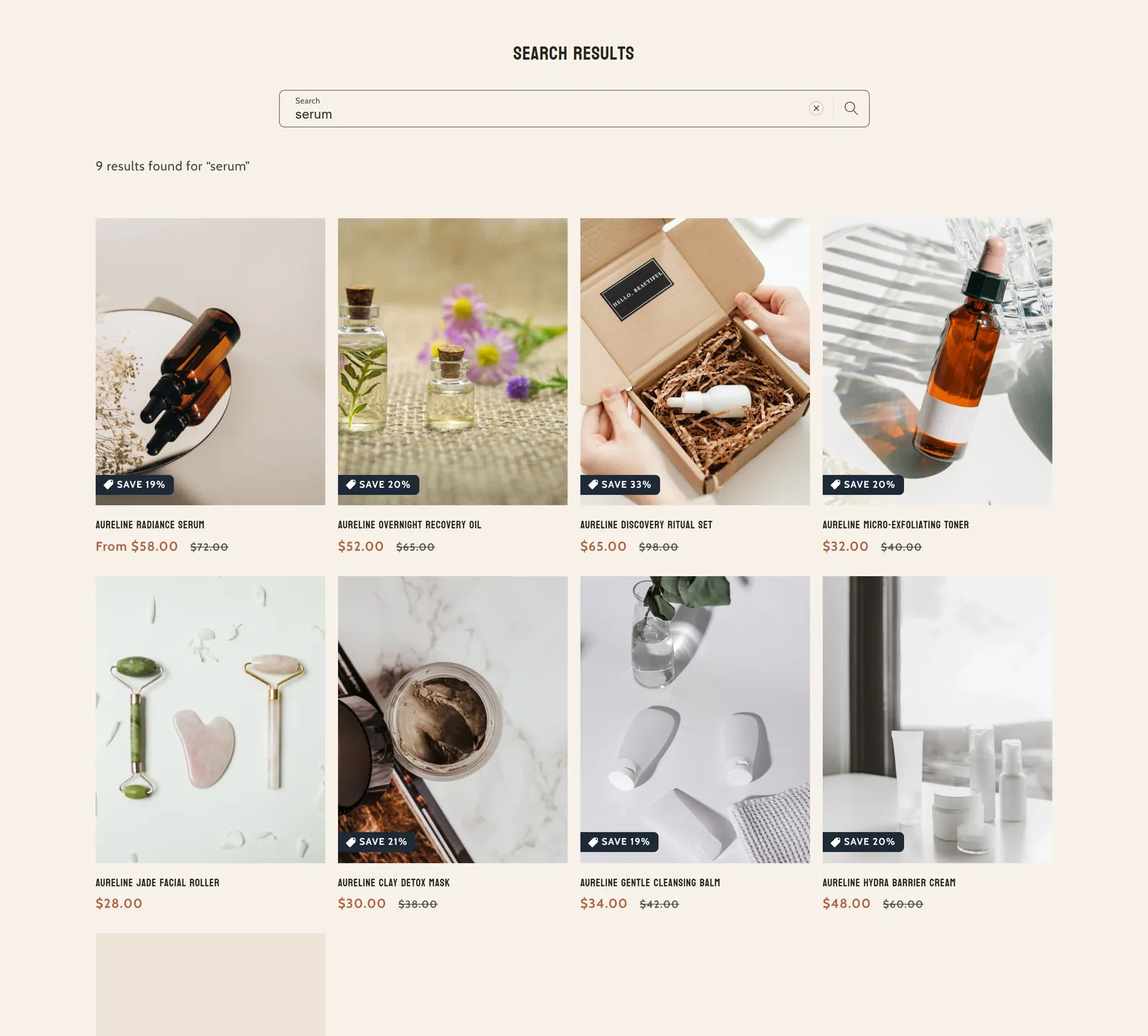
Collection & search
6 sectionsSections that present your catalog: each collection's banner and product grid, the collections list page, featured collections, the collection carousel and search results.


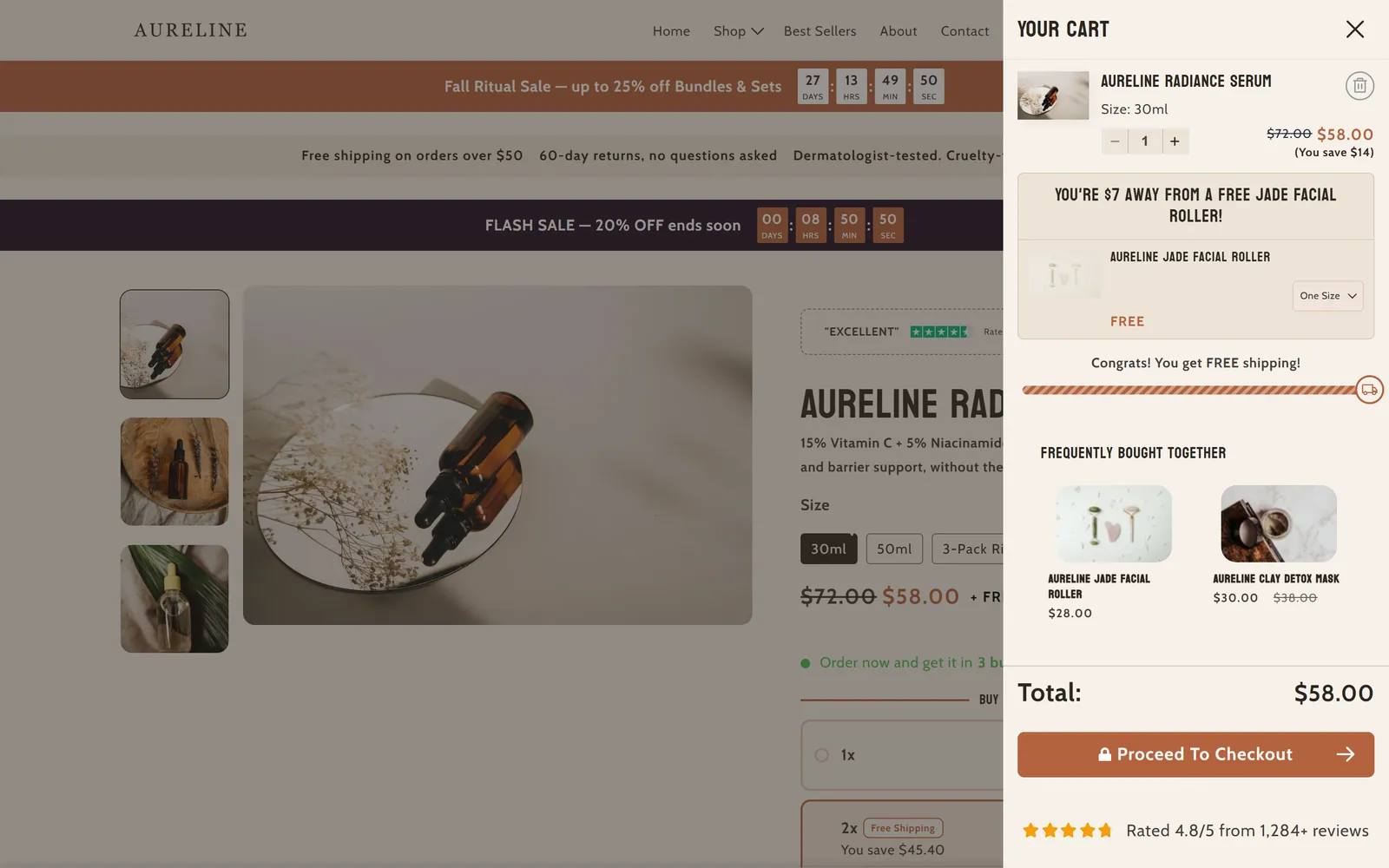
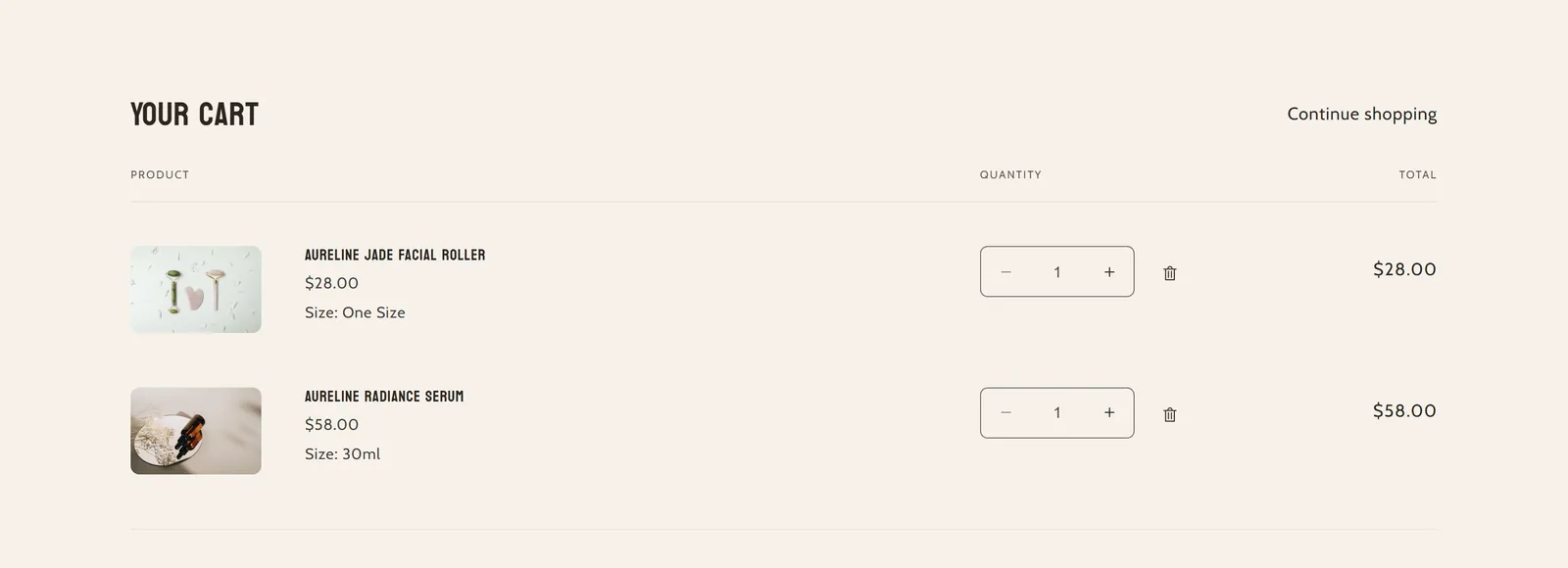
Cart
3 sectionsThe cart drawer that opens when a product is added, and the sections of the cart page (items and subtotal).

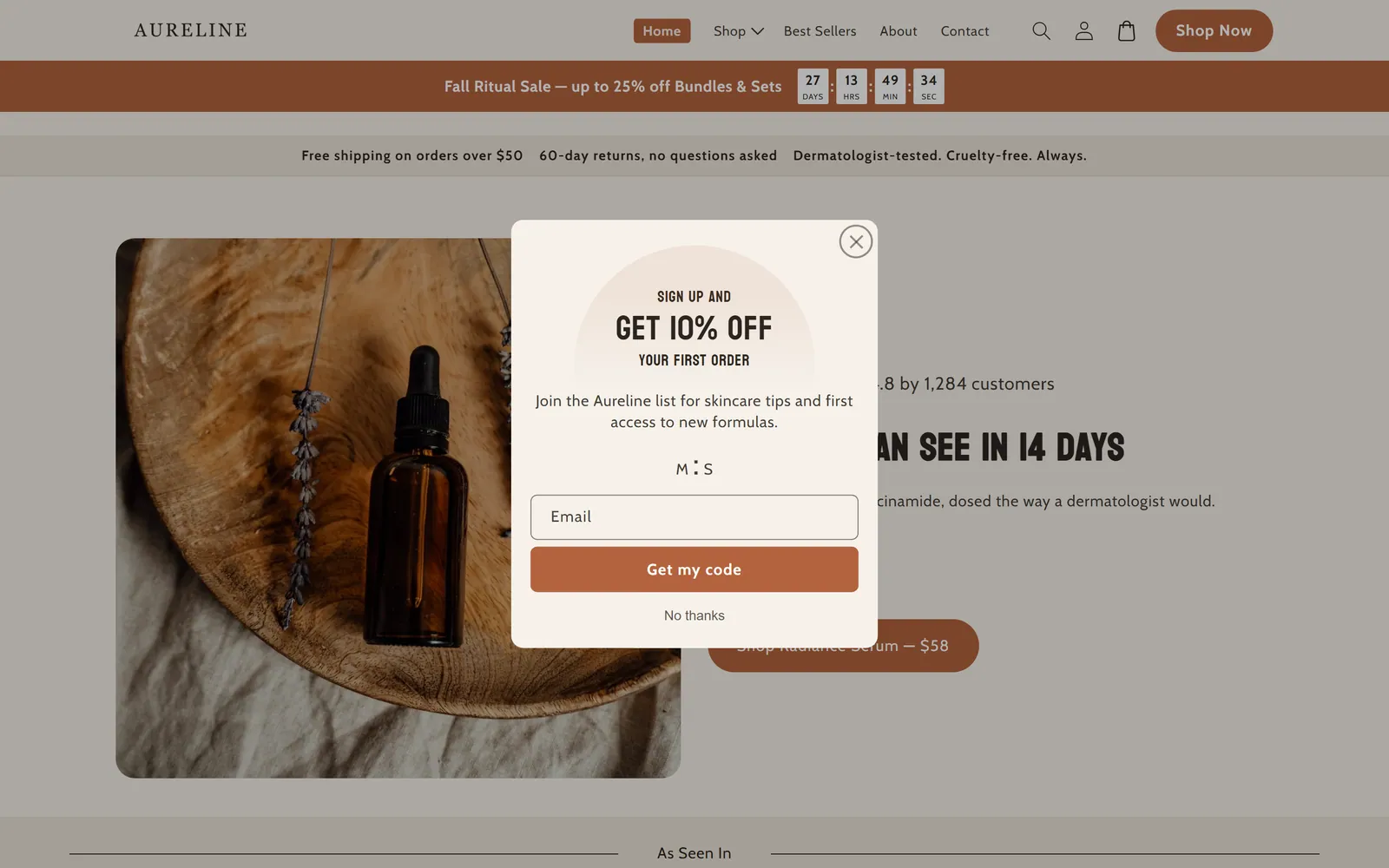
Conversion & urgency
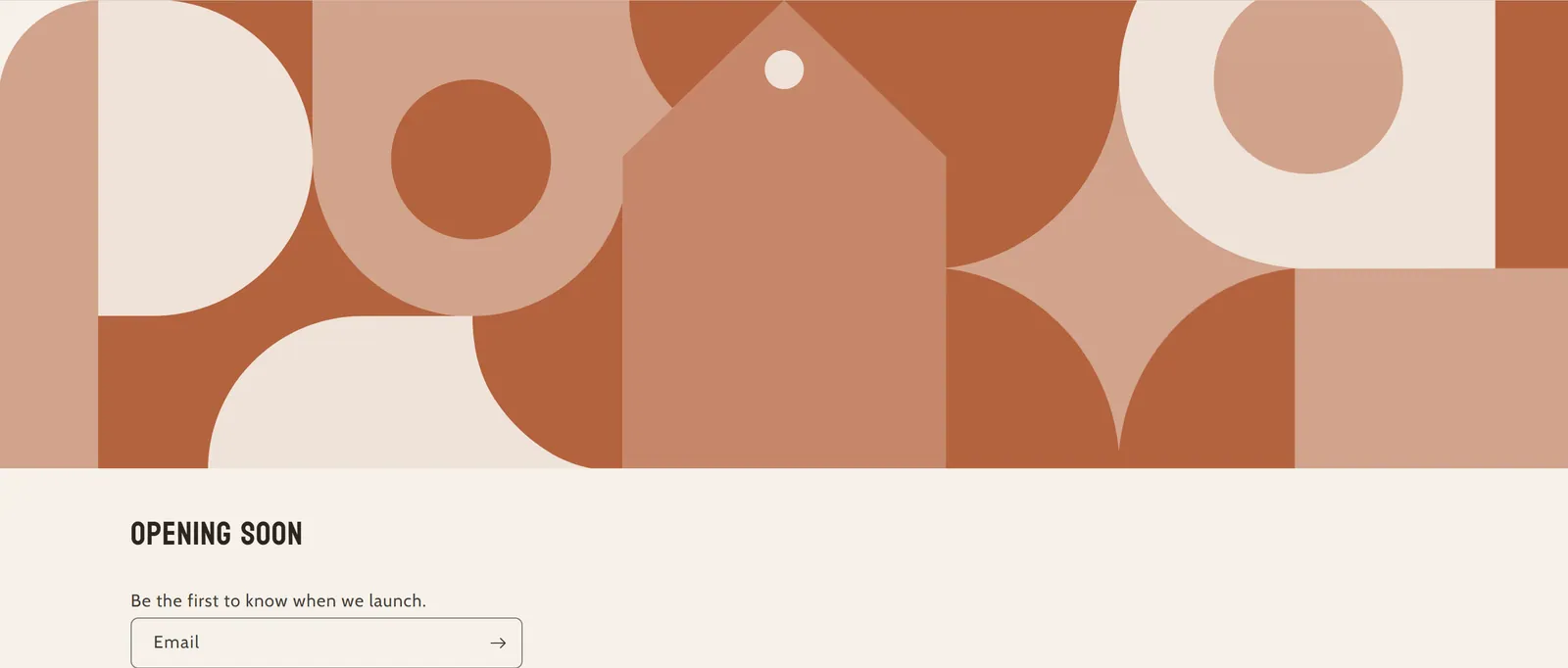
6 sectionsTools to encourage purchases and capture contacts: countdown timer bar, promo pop-up, email signup forms, step instructions and order tracking.


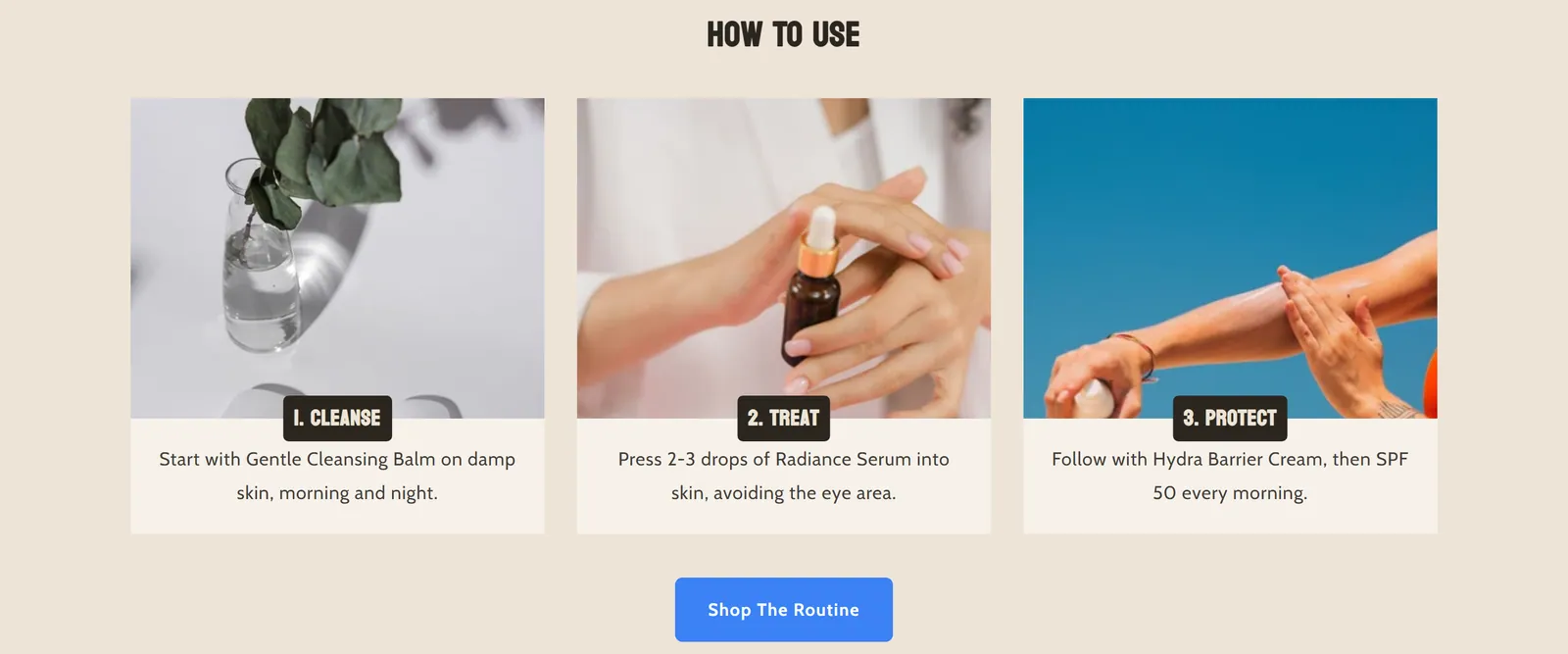

Social proof & trust
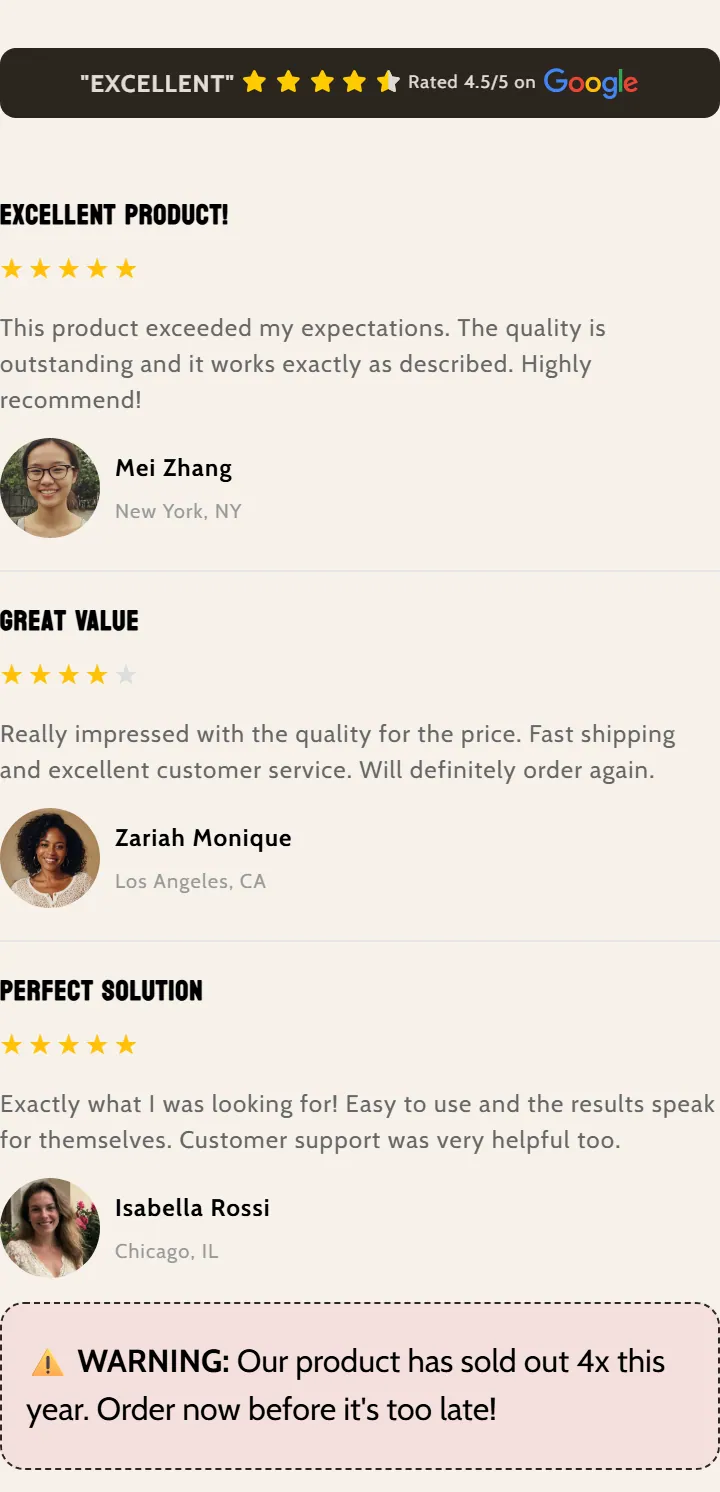
10 sectionsSections that build trust: testimonials, results, stars bar, comparisons, several «Why Choose Us» layouts and logos of the media you have been featured in.
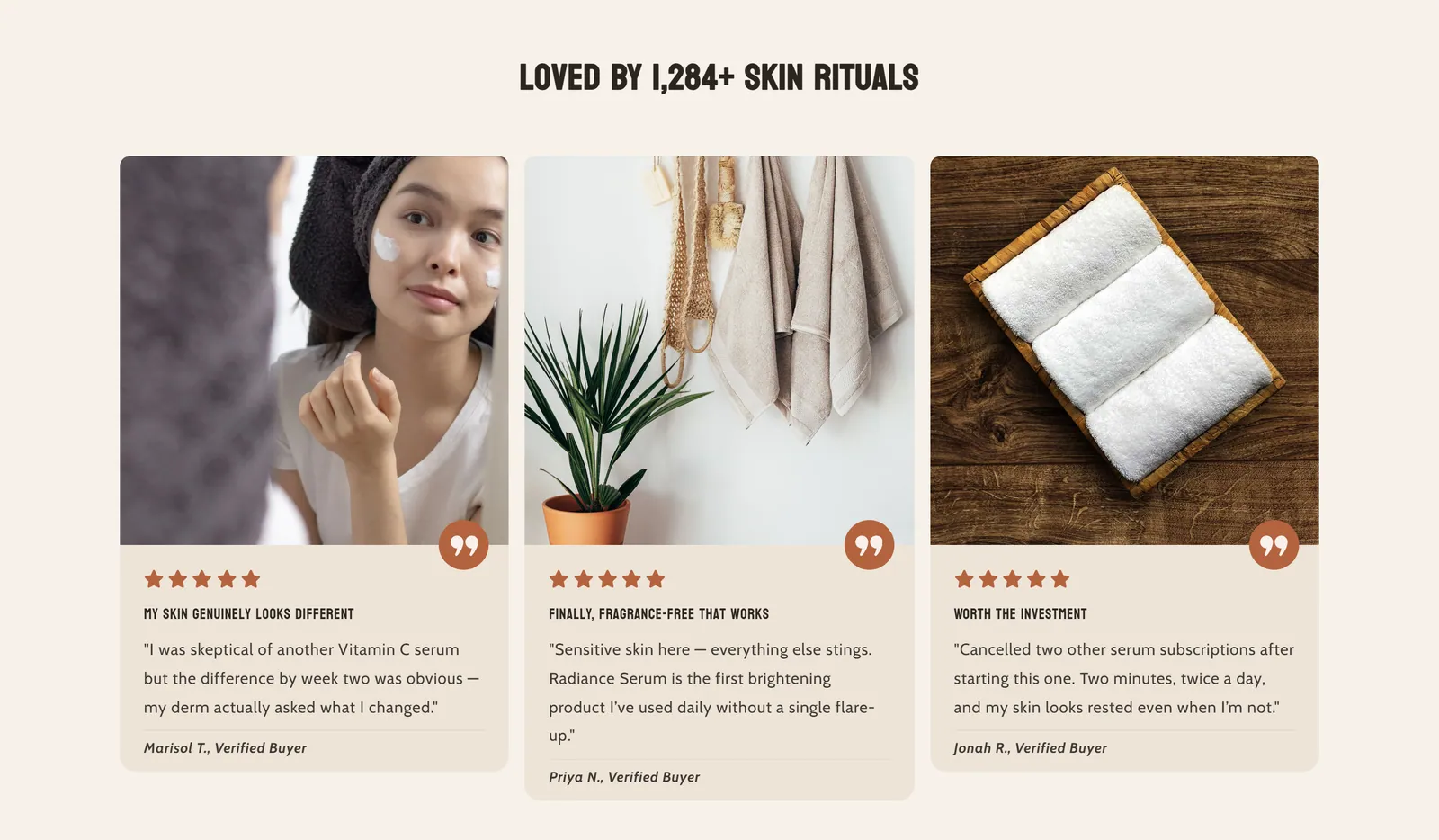 Pixelion - Testimonials77 settings · 1 blocks
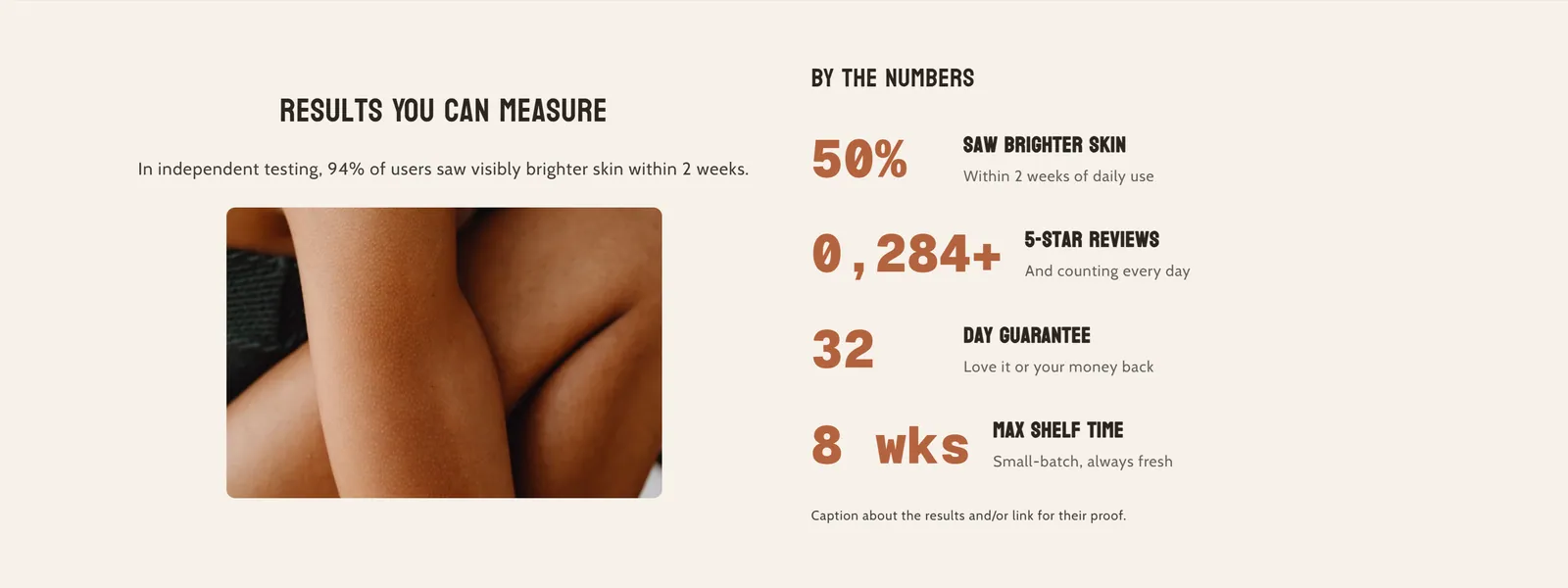 Pixelion - Results57 settings · 1 blocks
 Pixelion - Stars Bar11 settings
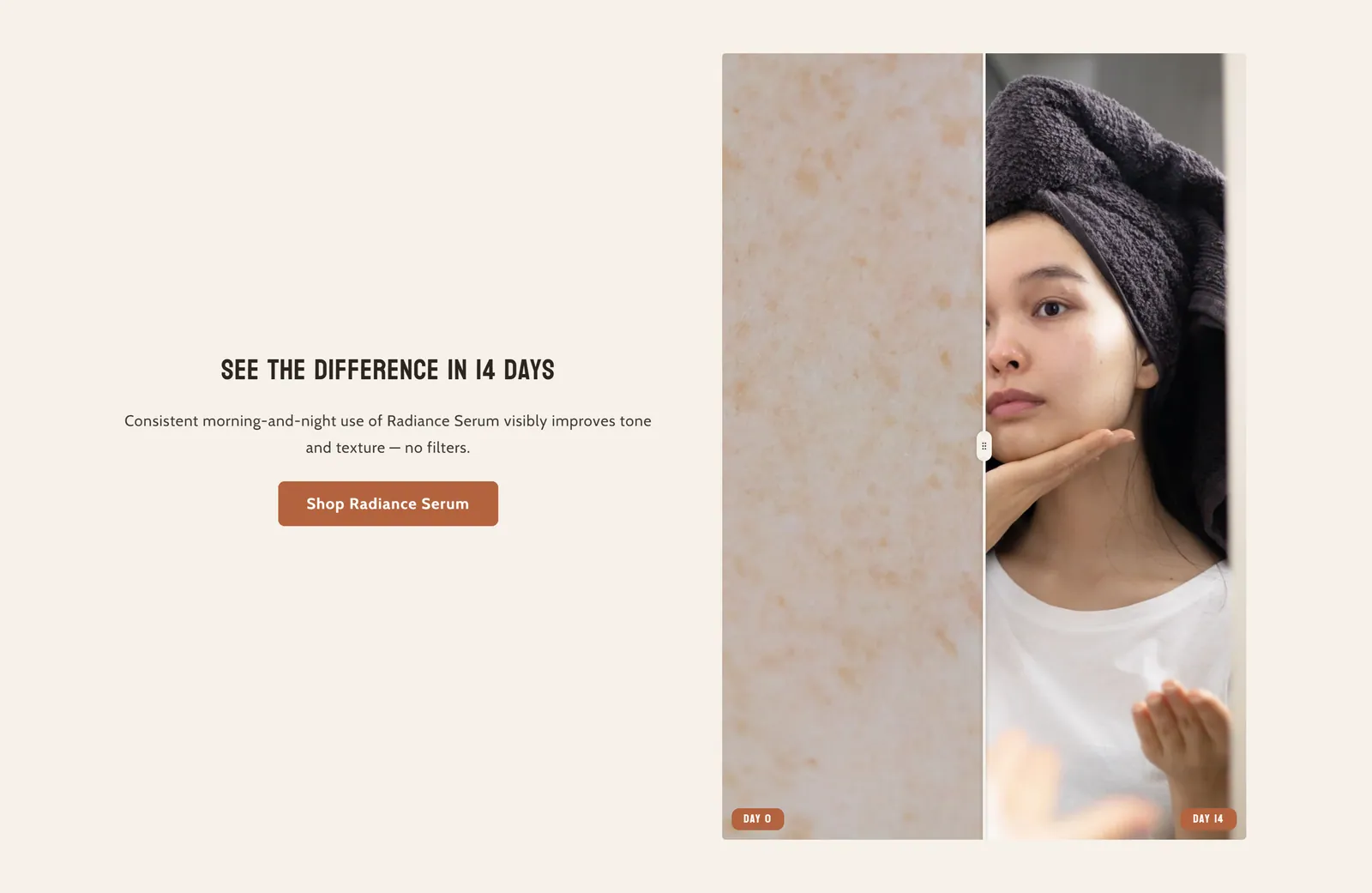 Pixelion - Compare slider22 settings
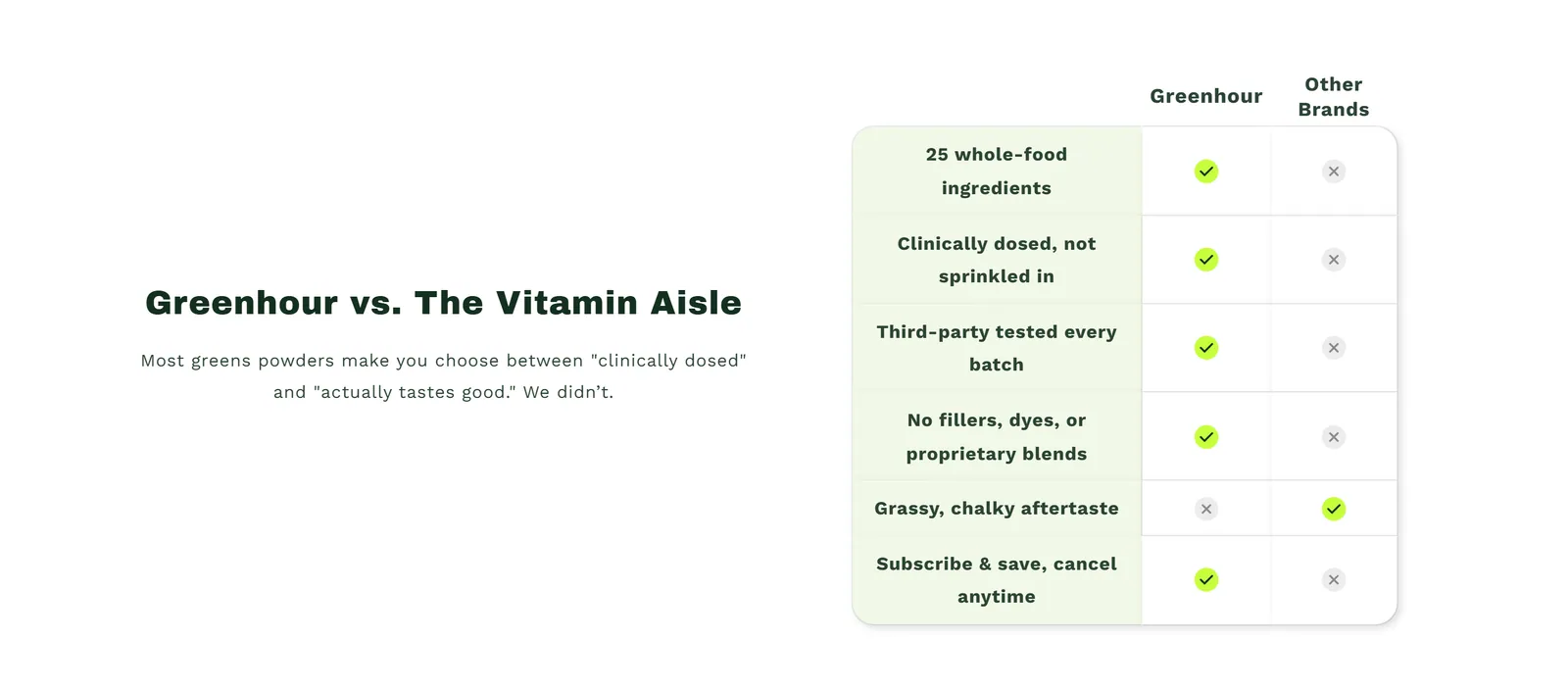 Comparison Table54 settings · 1 blocks
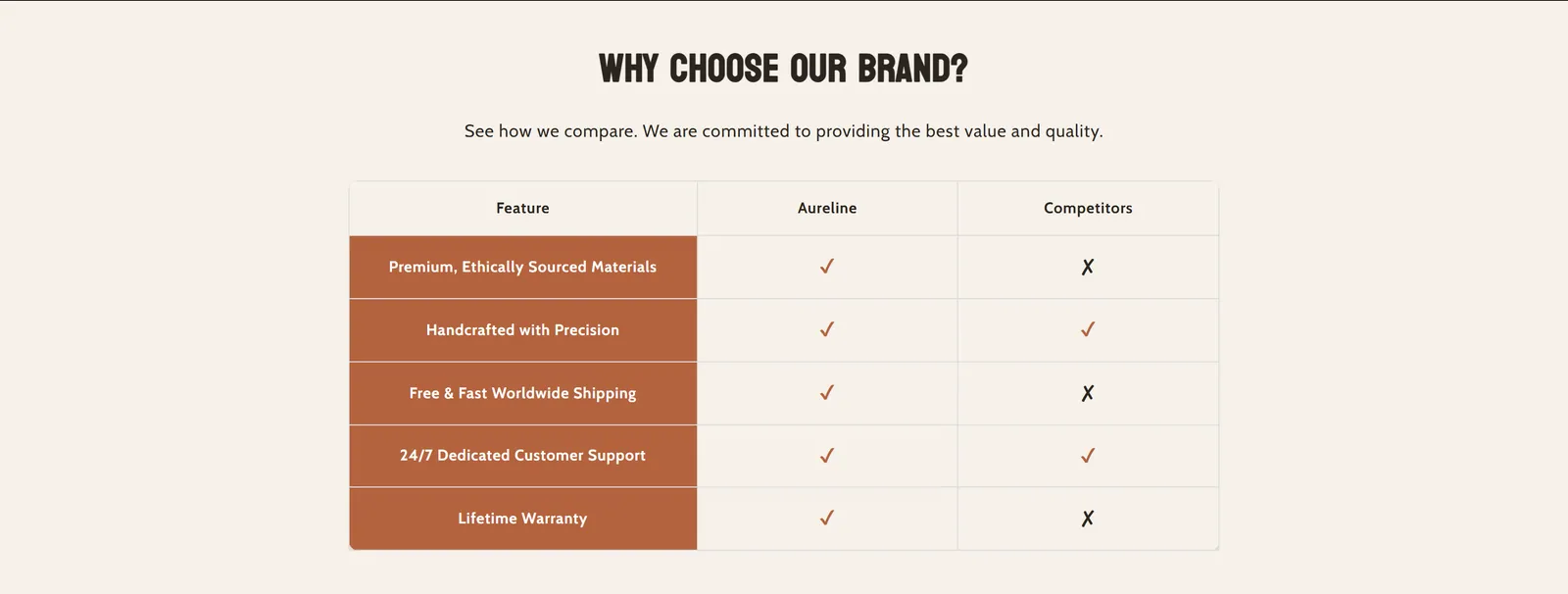 Why Choose Us58 settings · 1 blocks
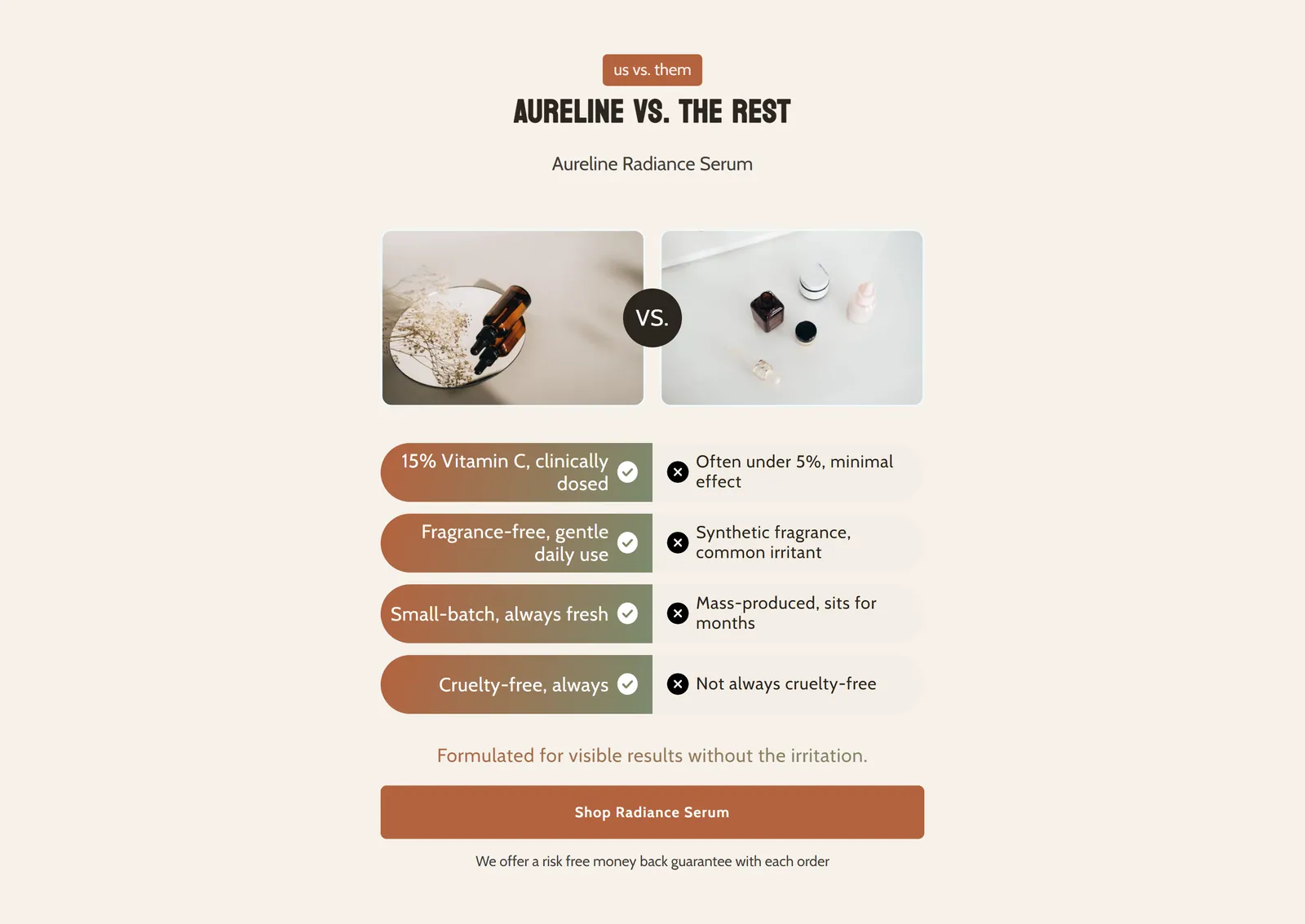 Why Choose Us v2132 settings · 2 blocks
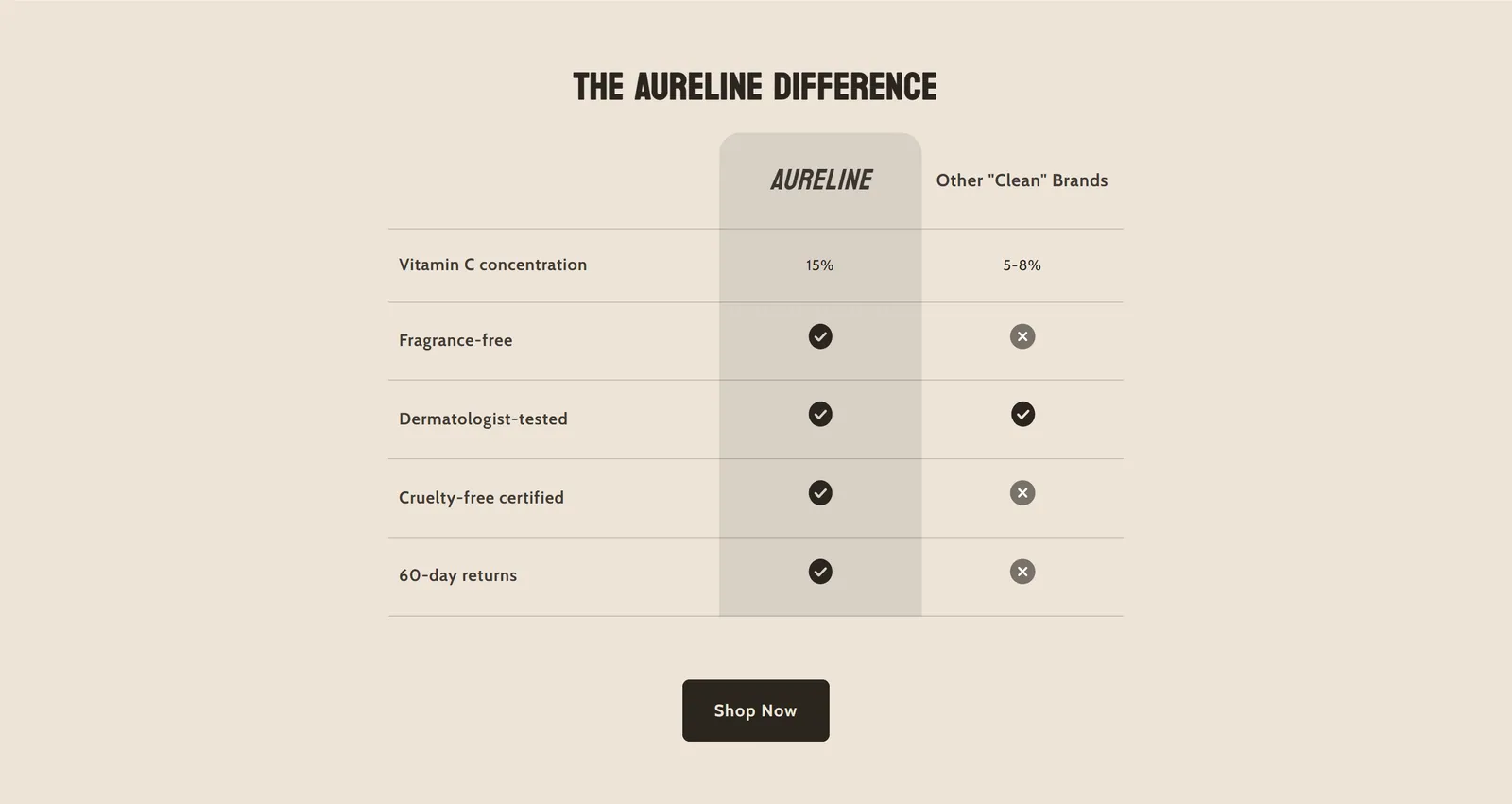 Why Choose Us v3113 settings · 2 blocks
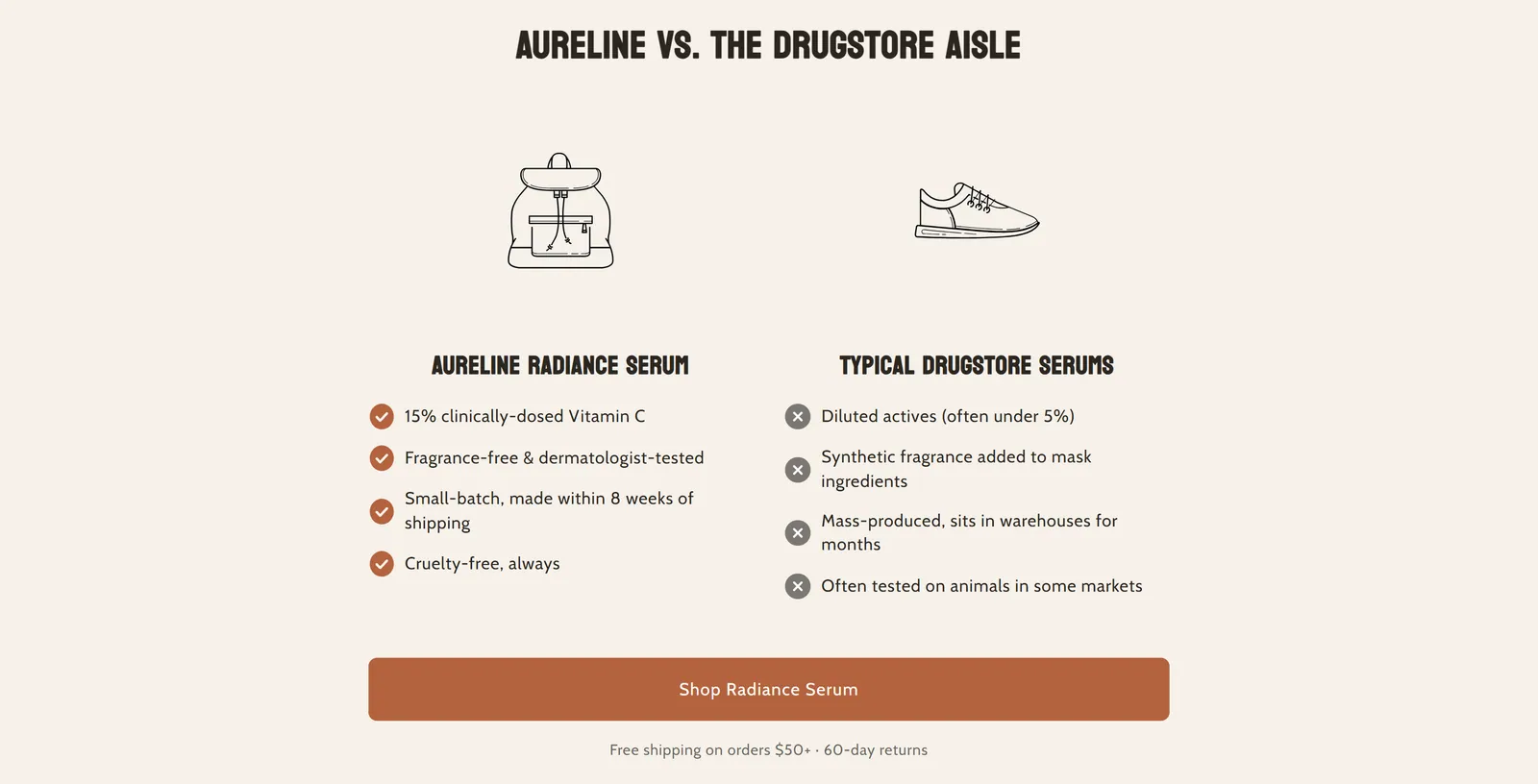 Why Choose Us v4112 settings · 3 blocks
 Pixelion - Featured on37 settings · 2 blocks
Content
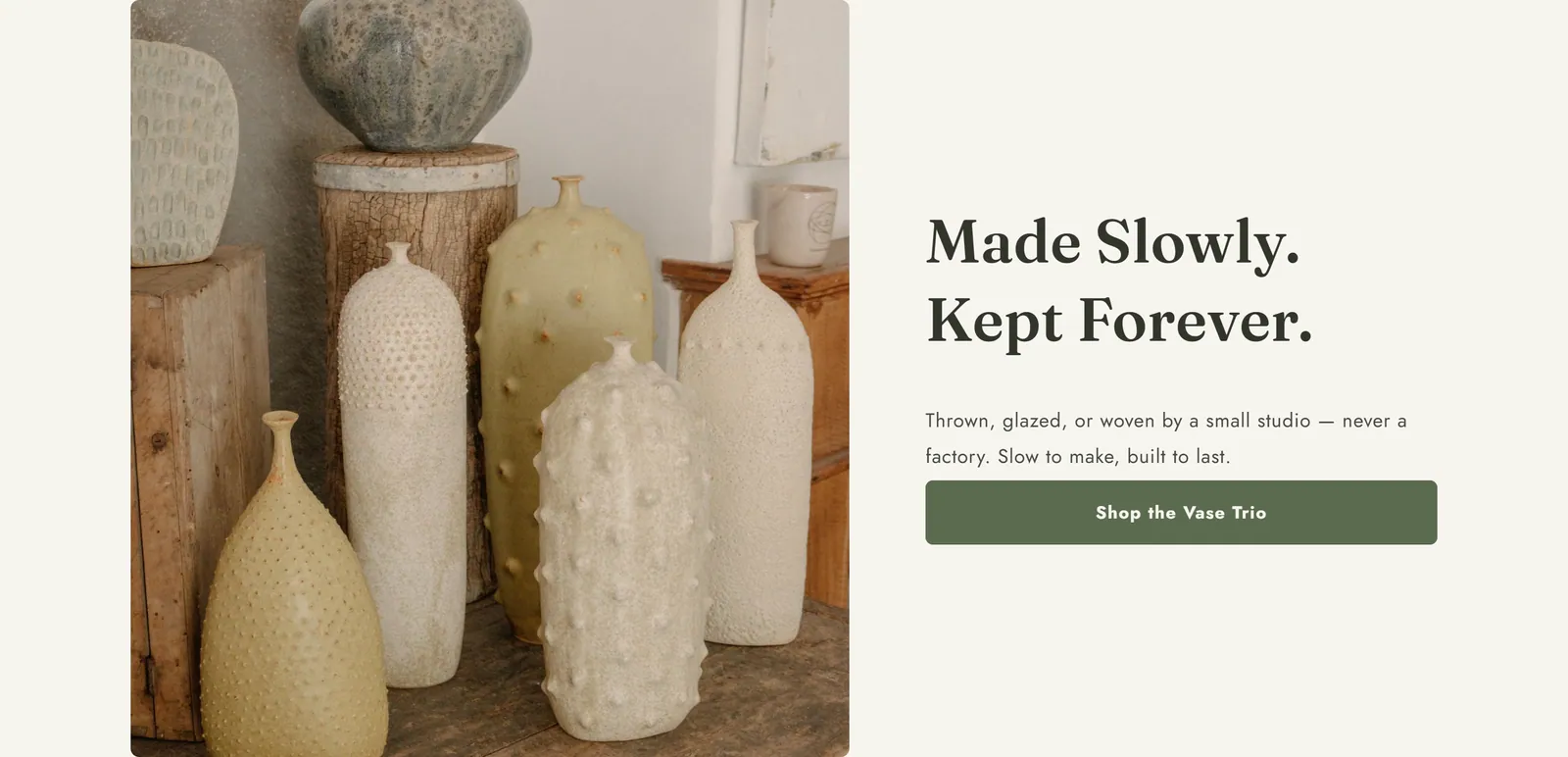
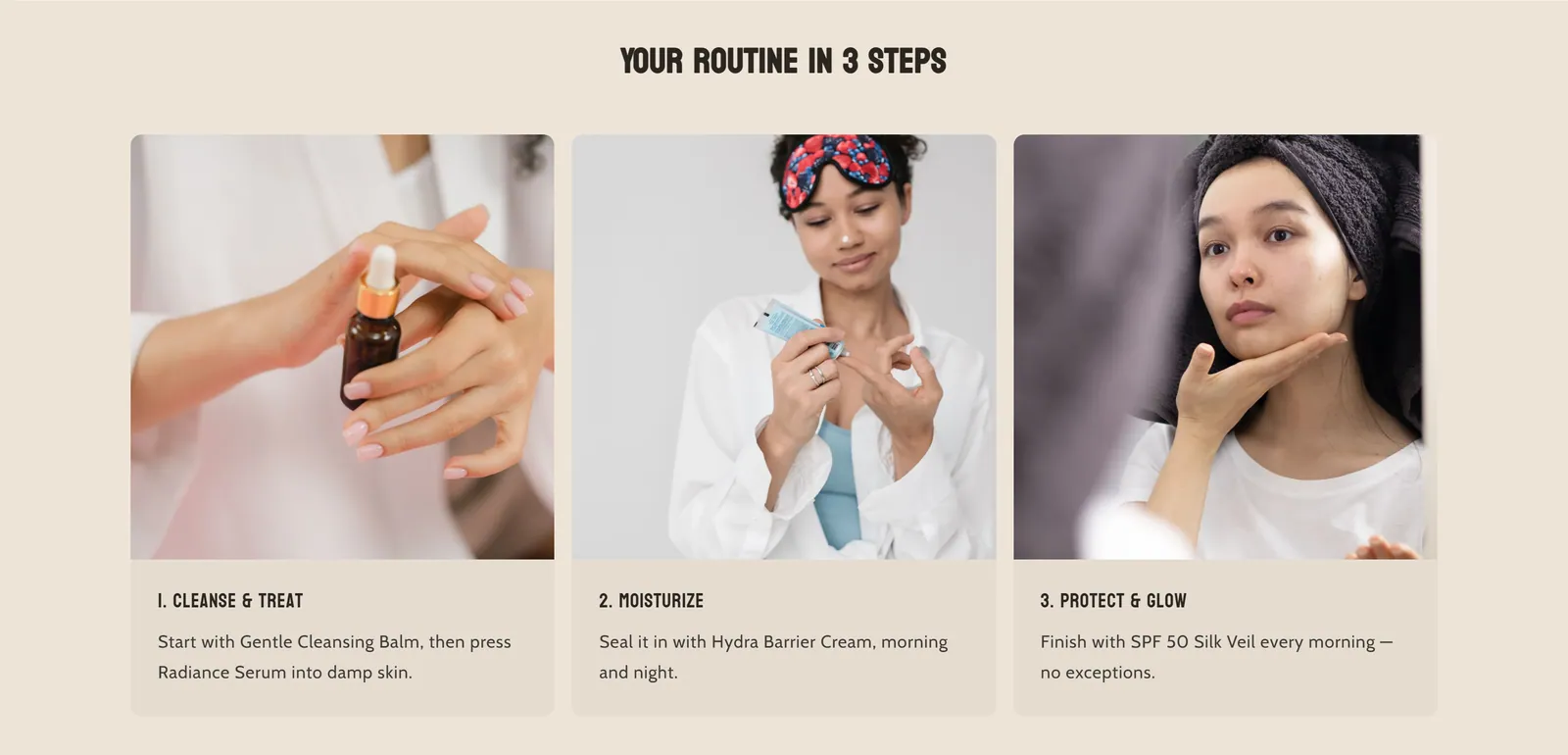
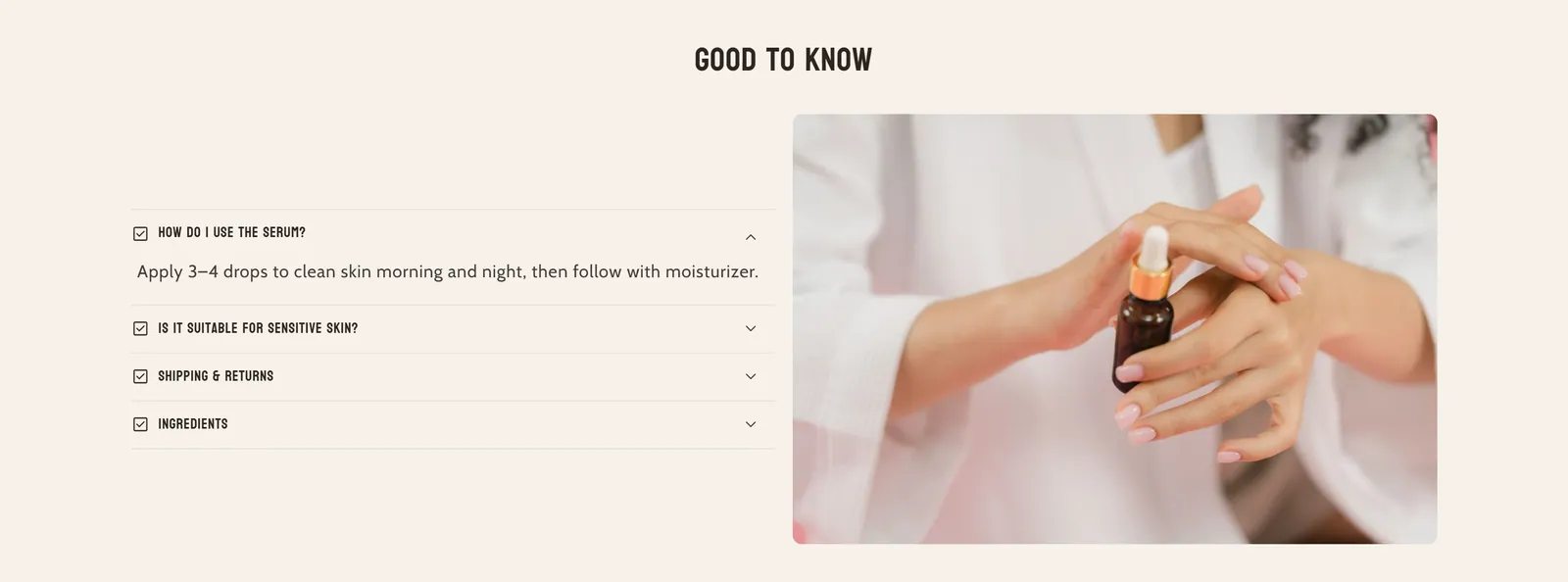
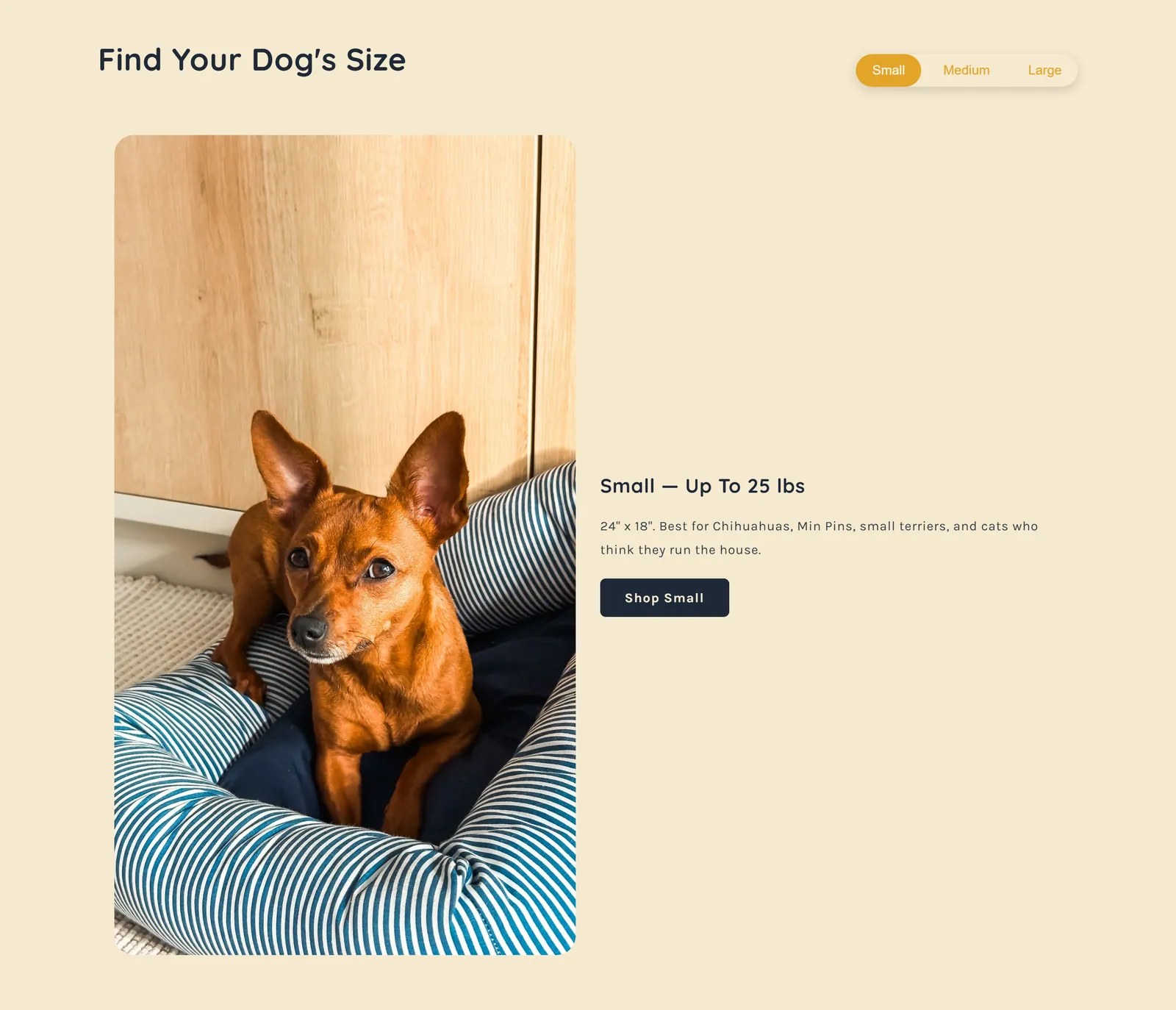
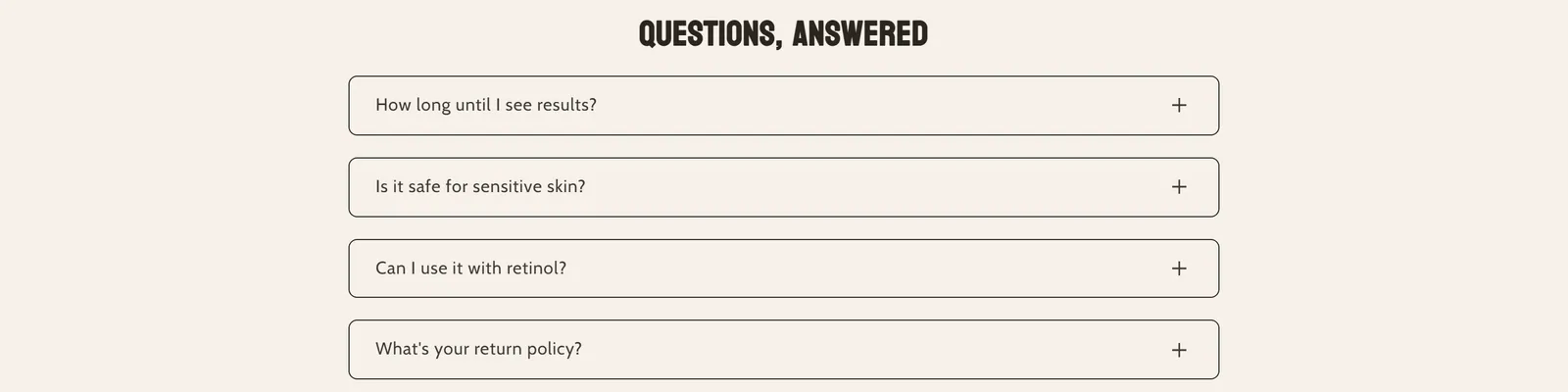
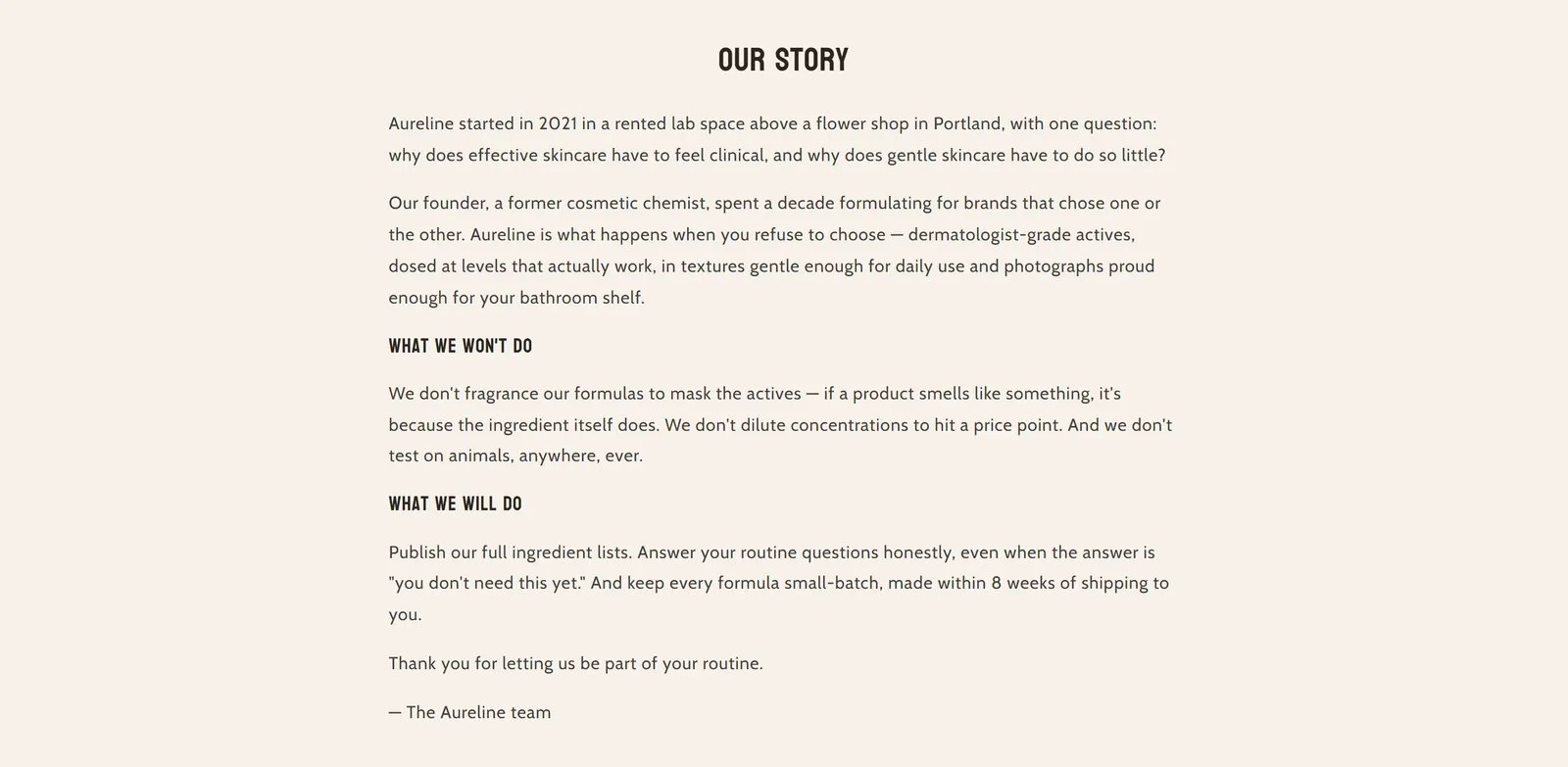
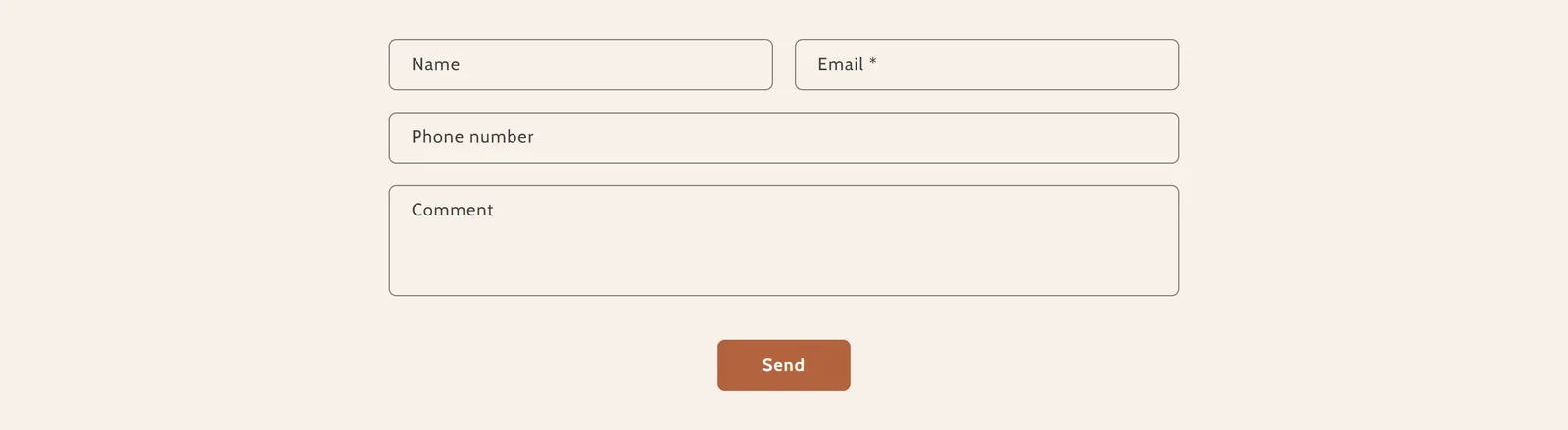
9 sectionsText and information sections: rich text, image with text, multicolumn, collapsible content, tabs, FAQs, pages and the contact form.


Images & video
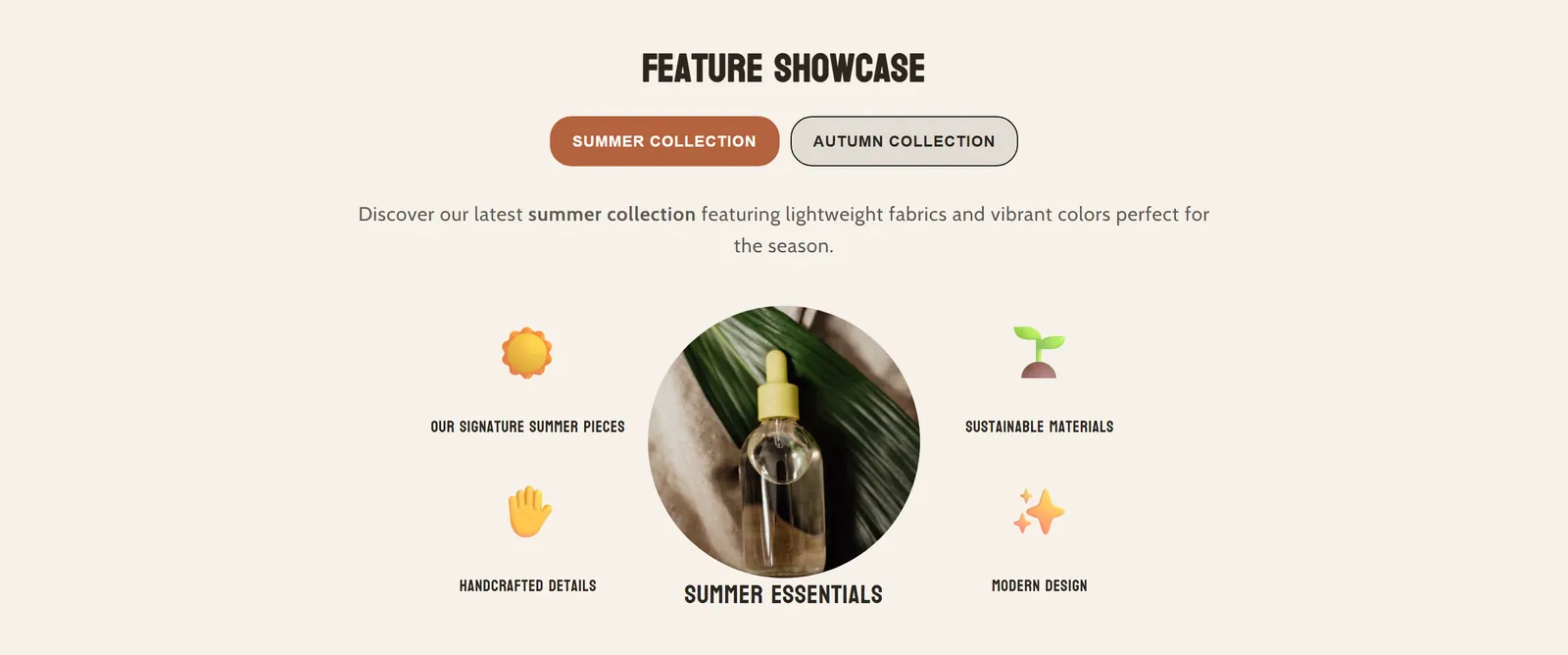
6 sectionsVisual-first sections: video, image slider, icon bars and icons with content, feature showcase and dividers between sections.

Blog & pages
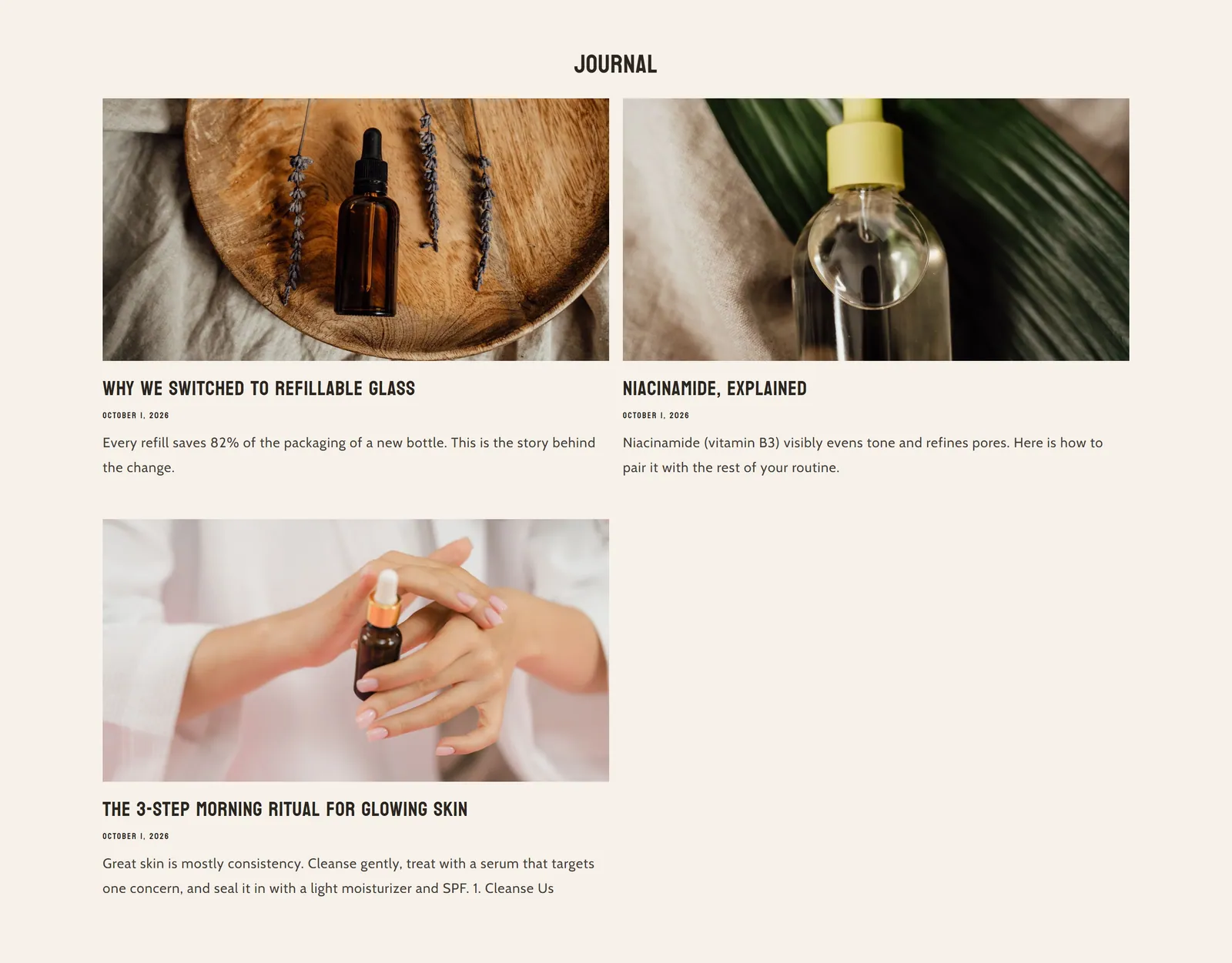
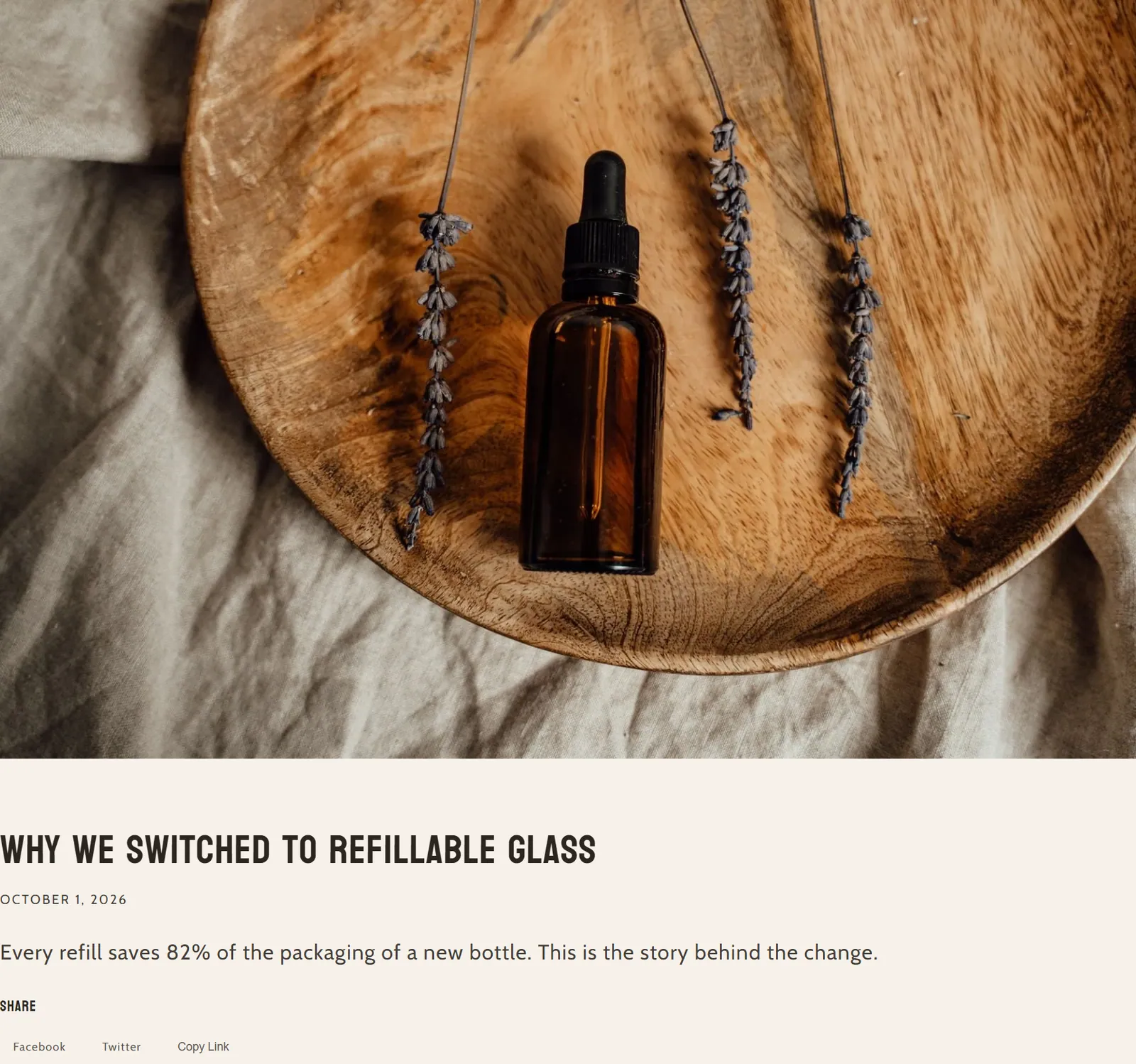
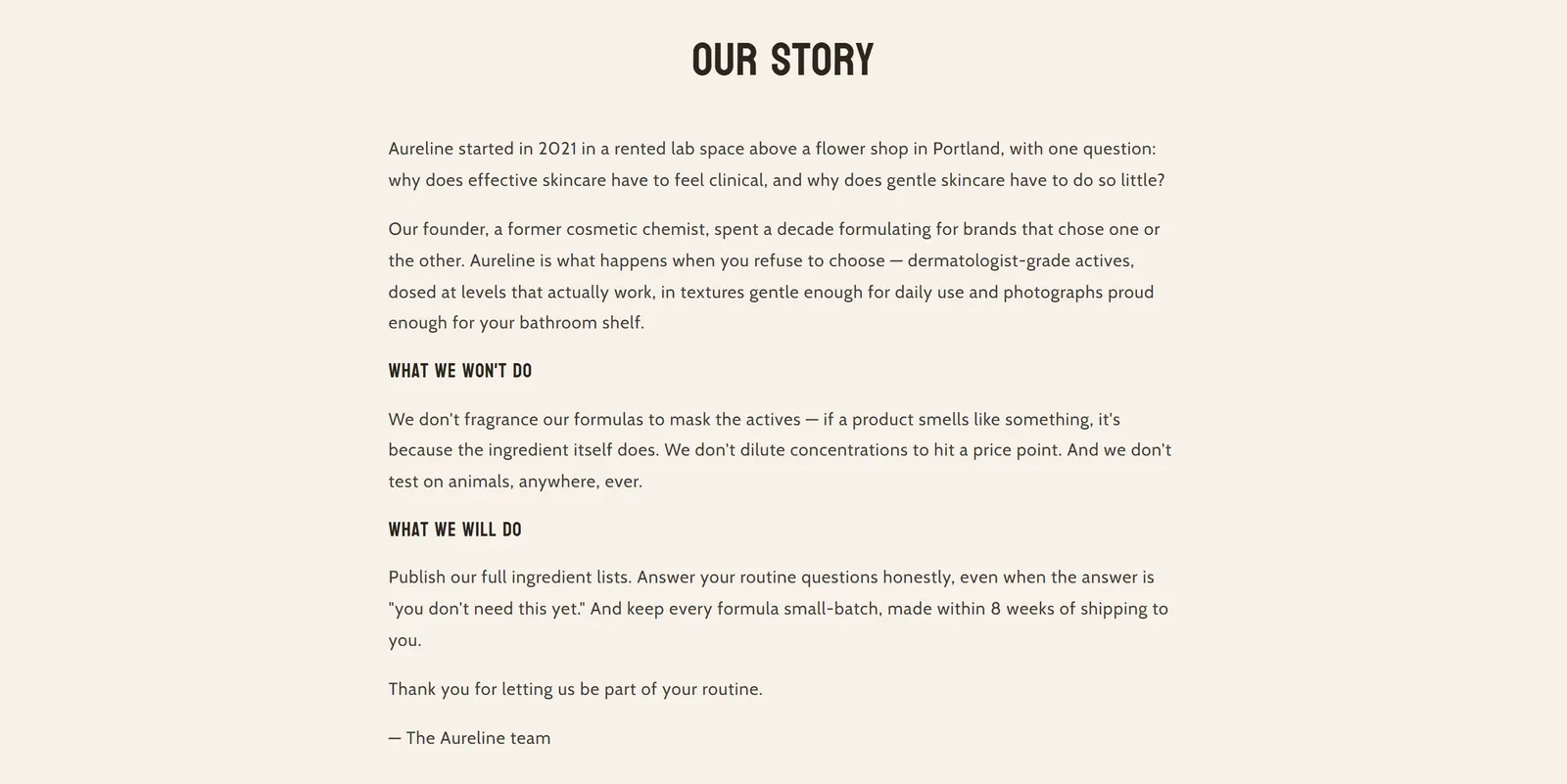
6 sectionsThe blog sections: the list of posts, each blog post page, the author, the sidebar and featured posts on other pages.

Footer
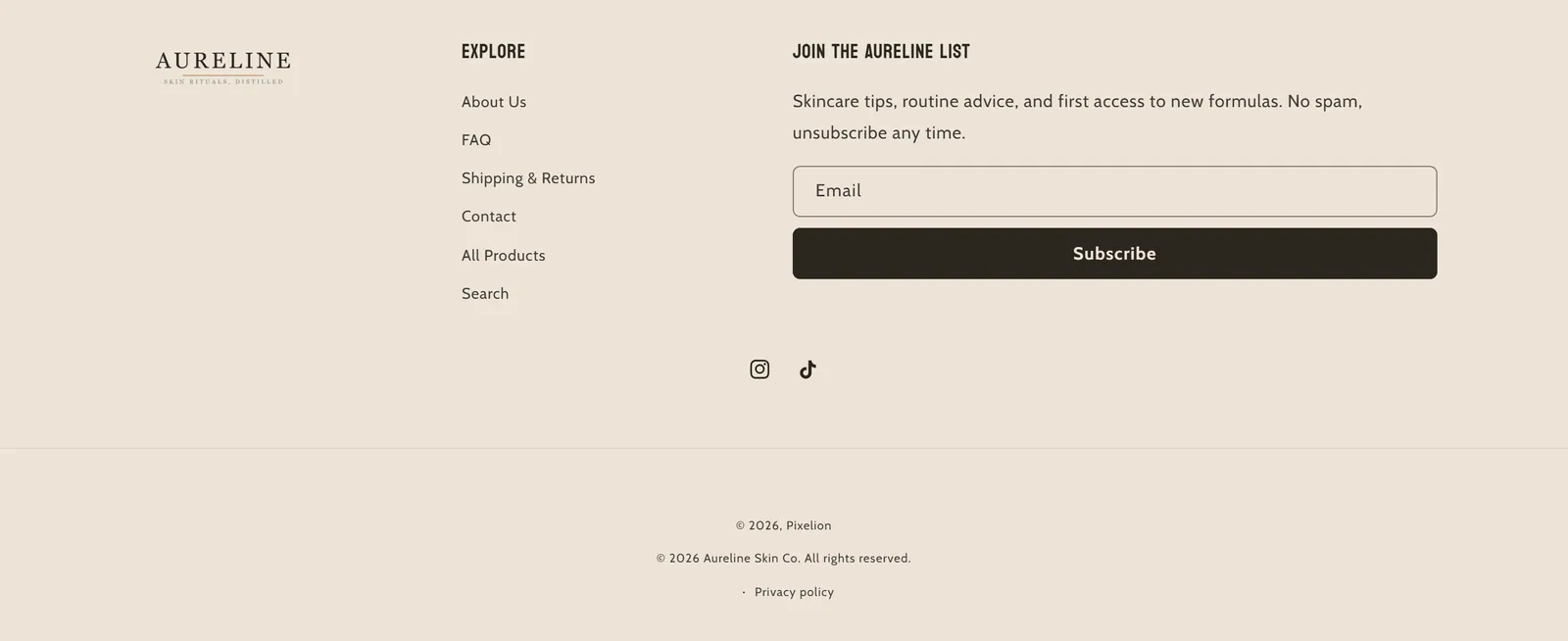
2 sectionsThe footer shown at the bottom of every page and the disclaimer you can show below it.

Customer account & password
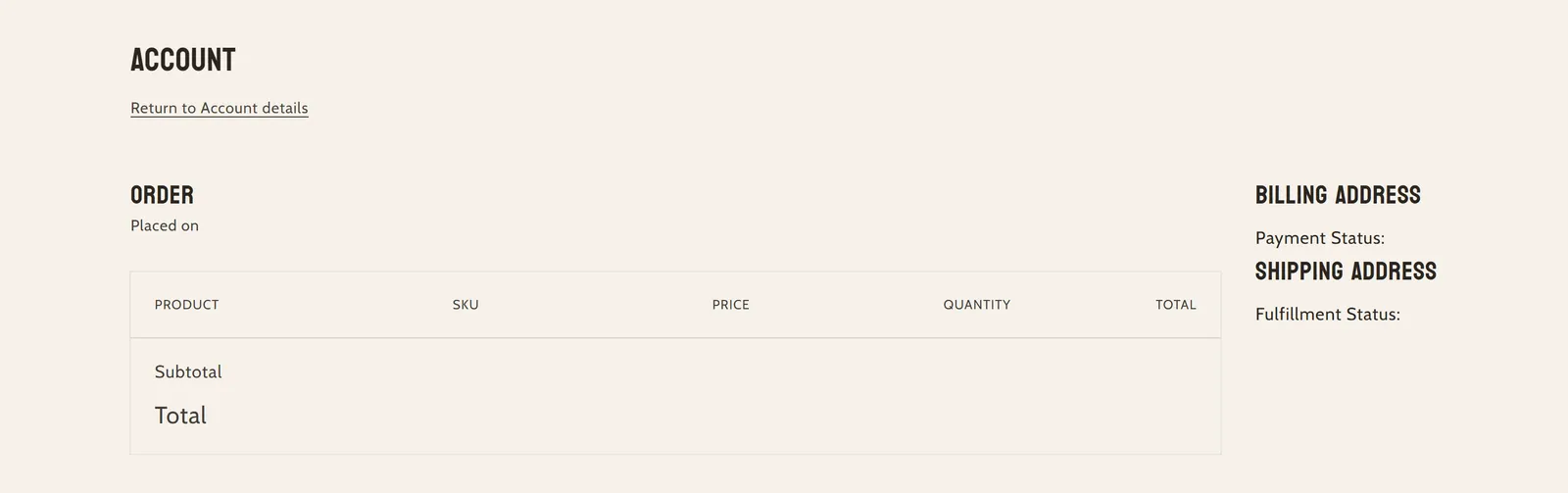
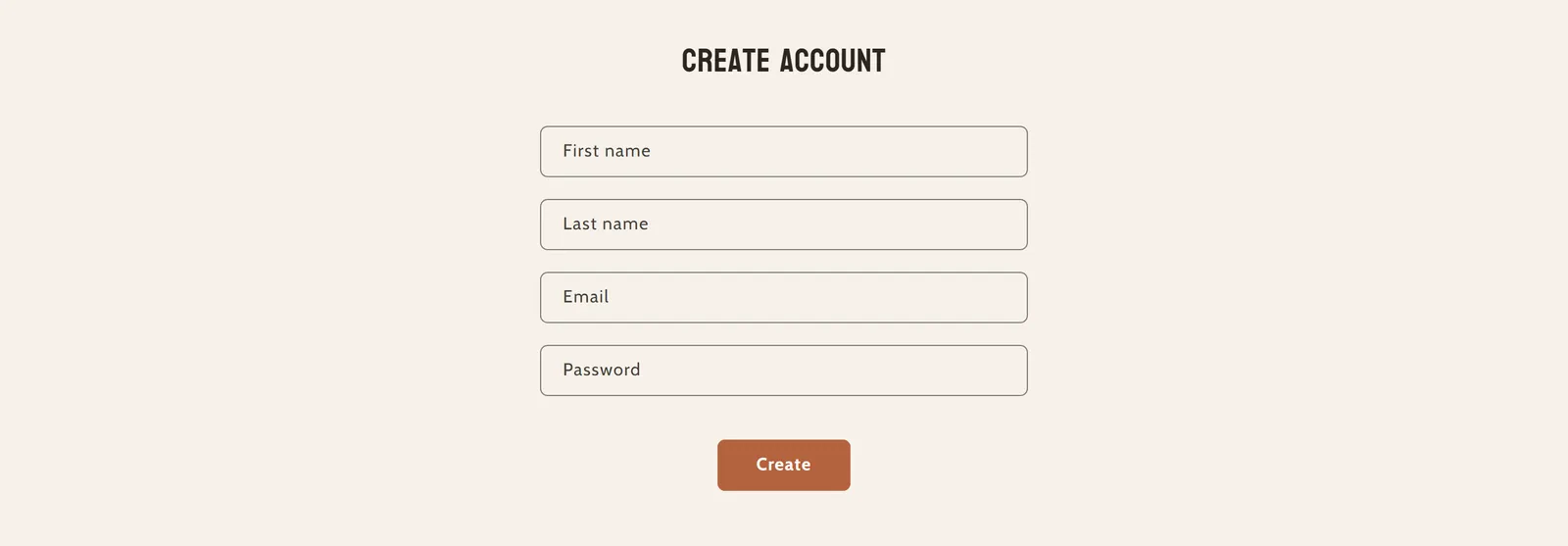
9 sectionsThe customer account pages (login, registration, orders, addresses…) and the password page header and footer. Shopify generates their content; these sections mainly control how they look.






Utilities
4 sectionsExtra tools: app blocks, custom Liquid code, Pixelion Designer and the scroll to top button.