Hero & banners
Image banner
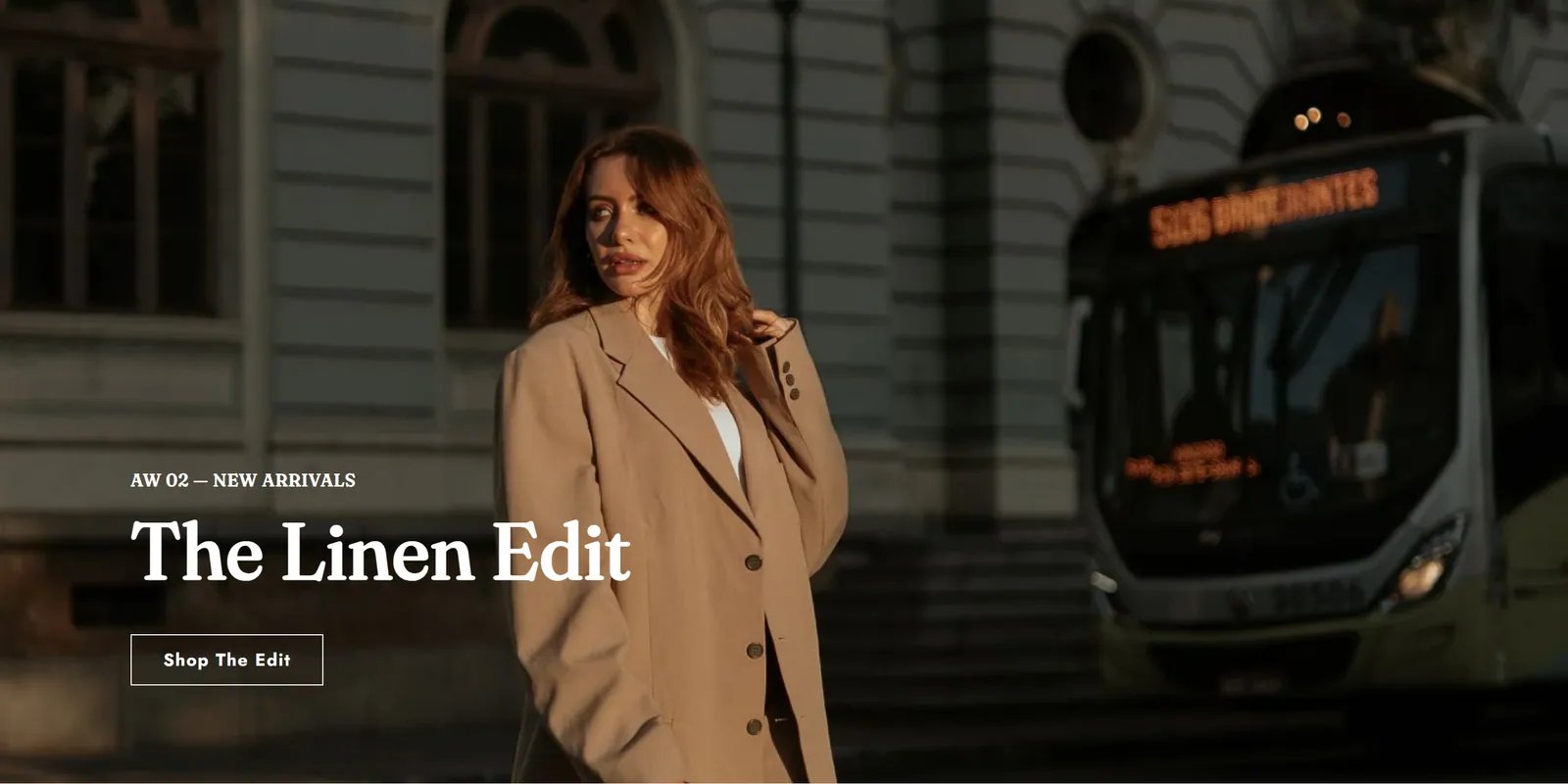
What it is
A banner with one or two background images and text on top. It is the classic section for home pages and promotions.
When to use it
- Open the home page with a strong image and a headline.
- Announce a promotion or a new collection.
- Use one image for desktop and a different one for mobile.
- Used by default in
- Not placed by default: add it from the editor.
- Available in
- Everywhere except: Header (every page), Footer (every page)
- Appears in the editor as
- «Image banner»
Main settings
How this section's settings are organised.
Images6 settings
First image · Display first image on: · Second image · Display second image on: · and 2 more
General6 settings
Link · Desktop content position · Show container on desktop · Desktop content alignment · and 2 more
Mobile3 settings
Mobile content alignment · Stack images on mobile · Show container on mobile
Common settings
This section also has these shared settings, explained on their own page:
Blocks
Content you add inside the section with “Add block”. Their settings are in the full reference.
- Pixelion Heading22 settings
- Pixelion Description V195 settings
Full reference: 192 settings
Type, default value, ranges and units, every option and when each setting shows — plus every block setting, tips and the docs of older versions. Available to Pixelion customers.
File: sections/image-banner.liquid · v2.0.15