Social proof & trust
Why Choose Us v4
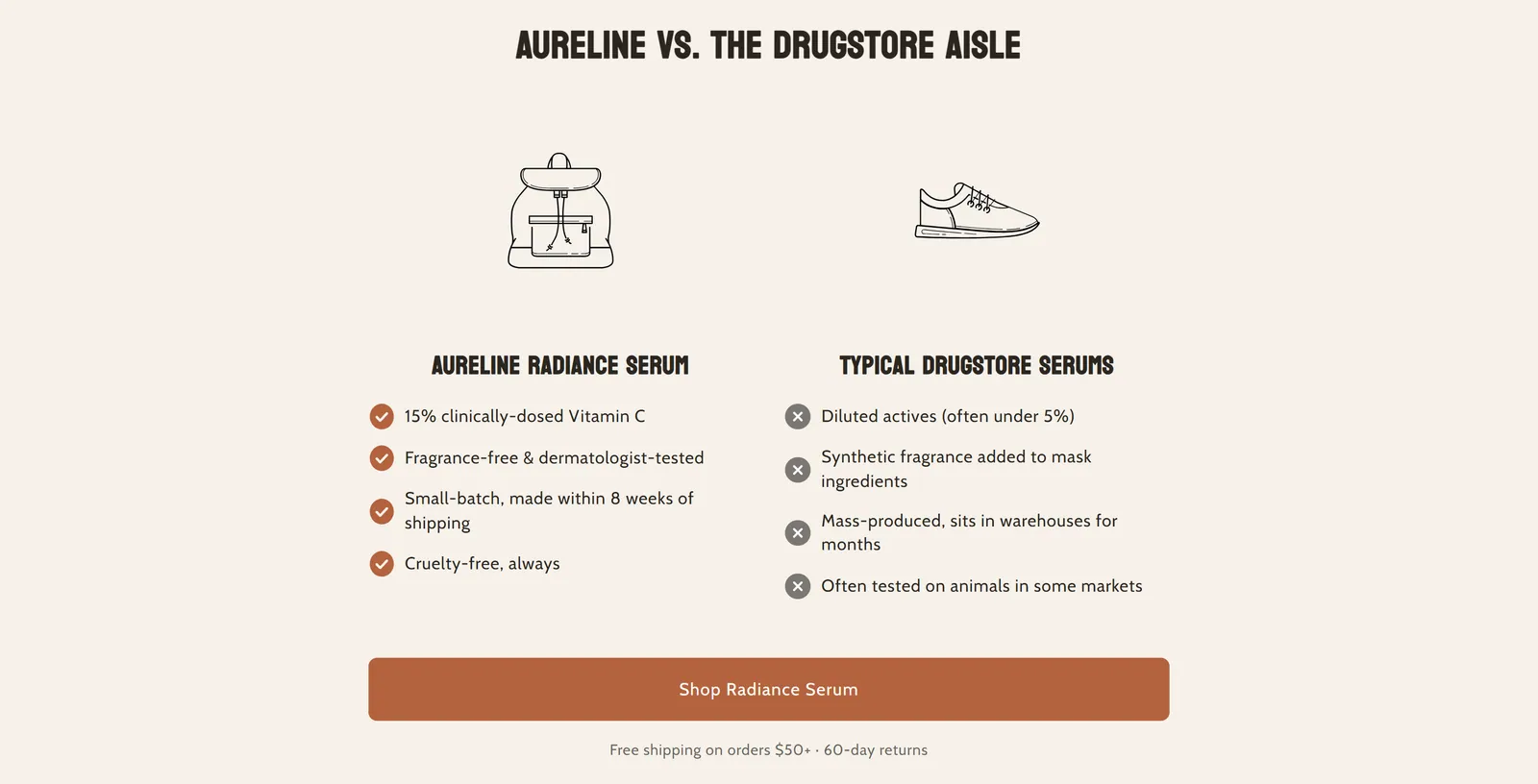
What it is
Compares your product with the competition in two columns, with images, features marked with a checkmark or an X, and a promotional text. It is placed on the product page.
When to use it
- Show why your product is better than the usual alternatives.
- Highlight ingredients, materials or benefits the competition does not offer.
- Close the comparison with an offer and a buy button.
- Used by default in
- Product page
- Available in
- Any template
- Appears in the editor as
- «Why Choose Us v4»
Main settings
How this section's settings are organised.
Content17 settings
Heading · Font size · Mobile font size · Heading text alignment · and 13 more
Image Settings6 settings
Image Width/Height (Desktop) · Image Width/Height (Mobile) · Product Title Size (Desktop) · Product Title Size (Mobile) · and 2 more
Typography6 settings
Feature Text Size (Desktop) · Feature Text Size (Mobile) · Icon size (desktop) · Icon size (mobile) · and 2 more
Layout4 settings
Custom width · Container width · Top padding · Bottom padding
Colors13 settings
Override background colors · Background color · Override text colors · Our Product Title Color · and 9 more
Common settings
This section also has these shared settings, explained on their own page:
Blocks
Content you add inside the section with “Add block”. Their settings are in the full reference.
Our Product Feature1 settings
What it is
One item in your product's list in the comparison: a benefit shown in your brand's column.
When to use it
- List what your product does better.
- Contrast it with the competitor list in the same section.
The step-by-step guide and every setting of this block are in the reference for customers. I'm a customer: sign in
Their Product Feature1 settings
What it is
One item in the competitor's list in the comparison: what the other product offers, shown in its own column.
When to use it
- Show the drawbacks of common alternatives.
- Balance your product's list of benefits.
The step-by-step guide and every setting of this block are in the reference for customers. I'm a customer: sign in
Full reference: 112 settings
Type, default value, ranges and units, every option and when each setting shows — plus every block setting, tips and the docs of older versions. Available to Pixelion customers.
File: sections/why-choose-us-v4.liquid · v2.0.20